sunnuntai 27. kesäkuuta 2021

PictureCorrect.com: Sky Replacement Tutorial in Photoshop

The Sky Replacement feature in Adobe Photoshop will help you to make skies in your images dramatic and surreal. In this step-by-step guide, you will learn how to use the Sky Replacement tool. You will also learn various settings in the Sky Replacement interface to make your skies beautiful.

Are you looking for beautiful skies in your images?

Or do you want to add stunning skies to your architecture, portrait, wildlife or landscape images?

If so, you are in the right place.

In this article, we will discuss Photoshop’s unique feature, Sky Replacement. This tool helps you to transform ordinary skies into beautiful ones. Whenever a photo of mine has an unfortunate flat sky, I use this technique.

Best of all, the Sky Replacement tool is easy to use and produces great results.

Let’s dive right in.

What you’ll learn

  1. Sky replacement tool box
  2. Sky adjustments
  3. Foreground adjustments
  4. Sky replacement for sample image

Step-by-step guide to Sky Replacement in Adobe Photoshop

Open the image in Adobe Photoshop. I’m using the latest version from 2021, but the general rules should apply regardless of which version you have.
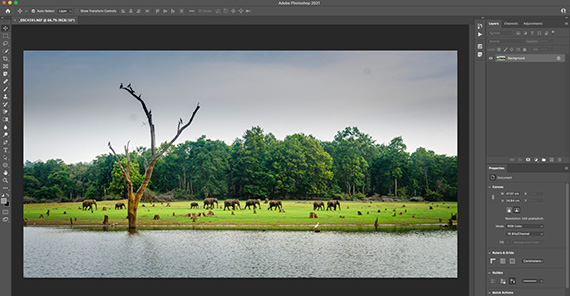
Image opened in Photoshop 2021

Go to Edit > Sky Replacement.
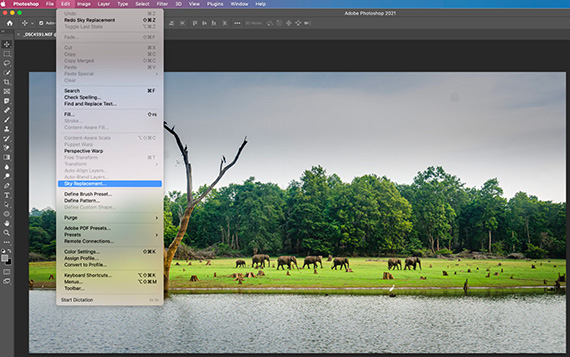
Edit dropdown menu

The Sky Replacement window will pop up.
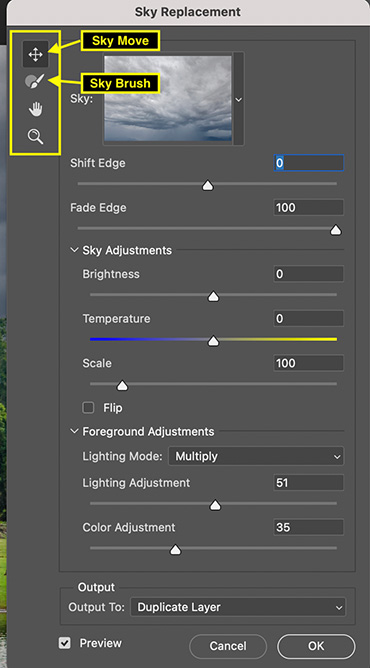
Sky Replacement Toolbox

There are several options in the top-left window. We will mainly use the top two, Sky Move and Sky Brush.

Click on the drop-down menu beside the image preview. Photoshop offers multiple default options, and you can add your own sky images to this bank.
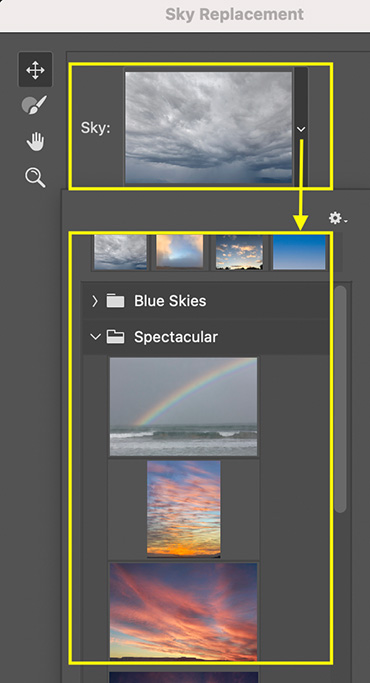
Default sky options available

Once you have selected which sky you want, you can see a preview of that sky in your image.

Shift Edge will help you define the boundary between sky and foreground. If you drag the Shift Edge slider toward the left (a negative number), the boundary, or sky, will shift away from the foreground.
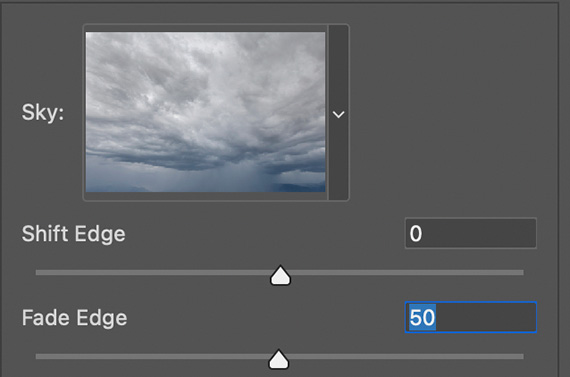
Sky edge adjustments

Similarly, if you drag the Shift Edge slider rightward (toward a positive number), the boundary or sky will shift toward the foreground. The Fade Edge slider will help you to make a smooth transition between sky and foreground.

Next up are Sky Adjustments, Brightness and Temperature. Brightness is self-explanatory: it controls how bright your sky looks. Generally, I will keep it to its default zero value or slightly reduce the brightness.
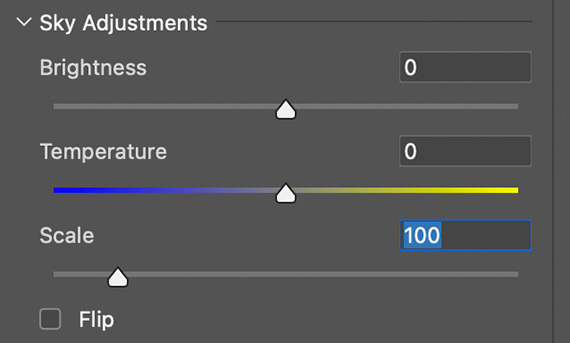
Brightness and temperature adjustment for sky

Use the Temperature slider to warm up or cool down the sky temperature, and use the Scale slider to scale up or down the sky part of your image. Next to the Scale slider, the Flip option will be helpful to flip the sky horizontally.

Once you make finish with Sky Adjustments, the next option is Foreground Adjustments. Foreground Adjustments help adjust Lighting Mode, Lighting Adjustment and Color Adjustment. You can make foreground adjustments using these three options, and they will help you to blend the foreground along with the newly replaced sky effectively.
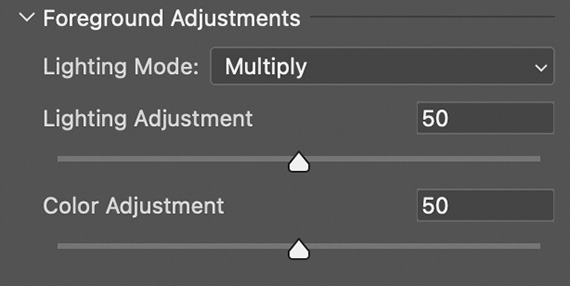
Light levels and color adjustment for the foreground

Here’s a rundown of the Lighting Modes: Multiply darkens the image, whereas Screen Blending brightens it. Below that, the lighting and color adjustments control the intensity of foreground adjustments for overall light and color. Increasing these sliders will increase the opacity.

The last option is Output. You can either select Output to New Layers or Duplicate Layers.

Output Option

I recommend you select New Layers. With New Layers, you can see all the layers that Photoshop has applied during this sky replacement process. You can also make some finer adjustments if necessary.
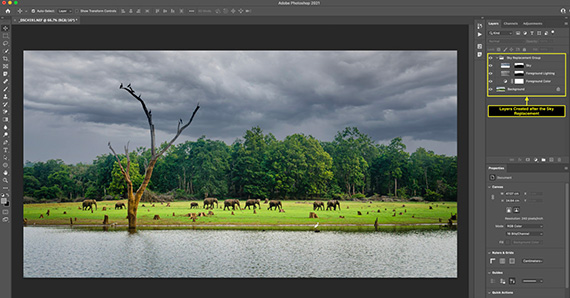
Multiple layers are created after applying Sky Replacement.

Duplicate Layers will create one single image. Similar to Flatten Image in Photoshop, all the layers get merged to create one single image.

Compare the before and after:
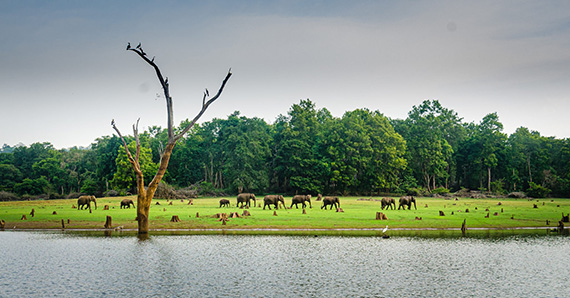
Before

Above is the image with a flat and dull sky.
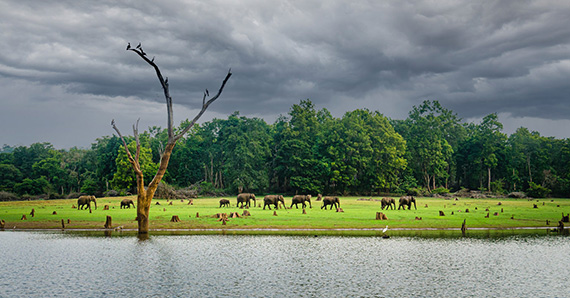
After

Here is a final image with an overcast sky, replaced using Sky Replacement.

A few things to consider when using Sky Replacement

  • Select a photo that is suitable for Sky replacement, because not every photo will work well.
  • When you replace the sky, keep an eye on the overall colors and temperatures of the image subject. Choose a sky that matches in terms of light levels, color temperatures and reflections.
  • As with any other feature, moderation is key. Use Sky Replacement feature when necessary, and do not try to rely too heavily on it.

Now it’s your turn!

I hope you enjoyed these tips on how to use the Sky Replacement tool in Photoshop.

Want to share your thoughts or responses? Let me know by leaving the comment below.

About the Author:
Shreyas S. Yadav is an engineer and photographer of wildlife and nature. He is also a writer and lifelong adventure explorer. Through his writings, he teaches about digital post-processing and nature photography. Shreyas shares field techniques about nature photography, post-processing and wildlife photo stories on his website.


Go to full article: Sky Replacement Tutorial in Photoshop

What are your thoughts on this article? Join the discussion on Facebook

PictureCorrect subscribers can also learn more today with our #1 bestseller: The Photography Tutorial eBook

The post Sky Replacement Tutorial in Photoshop appeared first on PictureCorrect.


from PictureCorrect https://ift.tt/3jhrwcv
via IFTTT
PictureCorrect.com: Interesting Photo of the Day: Majestic White Lion

Lions are known as “the King of the Jungle” for a reason. Between their bodies, strength and behavior—everything about them is majestic. But even these majestic beasts have to surrender to the whims of their biology. White lions are the result of an extremely rare color mutation specific to South African lions. Regarded to be divine species by some African tribes, white lions are peculiarly astounding. Consider the following image taken by photographer Harry Vincent in South Africa:

a white lion

“Majestic White Lion” by Harry Vincent (Via Reddit. Click image to see full size.)

Vincent took this image with his Canon 5D Mark II while standing pretty close to the lion in a reserve. He was just about 30 meters away when he took this image. As he explains, the experience totally surprised him, as he had severely underestimated how big these cats could get. Vincent says he’s 6’4″, and the lion’s head was in line with his chest.

When Vincent was capturing this image, the food truck in the sanctuary was close by with the lion’s food. This allowed him to photograph the big cat while it was looking toward the truck in anticipation of a proper meal.

“I was volunteering at a sanctuary and we were about to feed them so he was pretty fixated on the food truck.”

The sunlight hitting the lion from the side has created a beautiful outline, separating the beast from the background. The expression on the lion’s face is almost heroic. It is similar to that of a cat who just heard a packet of food being opened. It’s all in the genes, after all.


Go to full article: Interesting Photo of the Day: Majestic White Lion

What are your thoughts on this article? Join the discussion on Facebook

PictureCorrect subscribers can also learn more today with our #1 bestseller: The Photography Tutorial eBook

The post Interesting Photo of the Day: Majestic White Lion appeared first on PictureCorrect.


from PictureCorrect https://ift.tt/3A4OU32
via IFTTT

PictureCorrect.com: How to Get Sharp Photos While Using Aperture Priority

Professionals value time, and manual mode is sometimes a lot of work. So to keep things simple, they often choose to work in aperture priority mode. This way, the photographer has control over the depth of field while the camera does the rest. But in low light conditions, the camera can opt for slow shutter speed, causing images to turn out blurry. Andrew Boey explains how you can tackle the problem:

Cameras are programmed to expose for the mid-tone. They don’t care whether or not the shutter speed is fast enough when in aperture priority mode. They just want to get the mid-tone exposure correct. Unless you’re using a tripod and your subject is still, such slow shutter speeds are useless. You’ll end up getting blurry shots.

blurry portrait

How convenient would it be if you could instruct your camera to not to drop its shutter speed beyond a certain threshold when in aperture priority mode? Well, it is indeed possible. Here’s how you can do it:

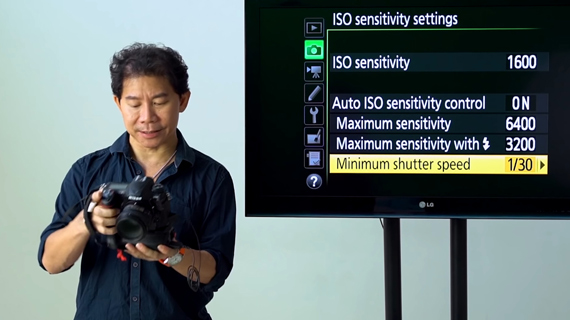
Locking Minimum Shutter Speed on Nikon Cameras

In order to program your camera not to slow down its shutter speed below a certain threshold, follow these steps:

  • Go to the menu and look for ISO sensitivity settings.
  • Set the ISO sensitivity to a lower value like 100 or 200.
  • Turn the Auto ISO sensitivity control on. This will tell the camera to raise the ISO instead of slowing down the shutter speed if the light is insufficient.
  • Choose Maximum sensitivity. How high you want to go depends on your camera and your taste. If noise is not an issue for you, choose higher values. Otherwise, stick with values like 6400.
  • Set the Maximum sensitivity with flash value to something lower than the Maximum sensitivity value.
  • And finally, choose your Minimum shutter speed. The value you set in this option will be the lower limit for your shutter speed. Go for values like 1/30 or 1/60 second.

ISO sensitivity settings in Nikon

With these settings, if the lighting gets poor, the camera will now raise the ISO and not drop the shutter speed below the minimum shutter speed to gather as much light as possible.

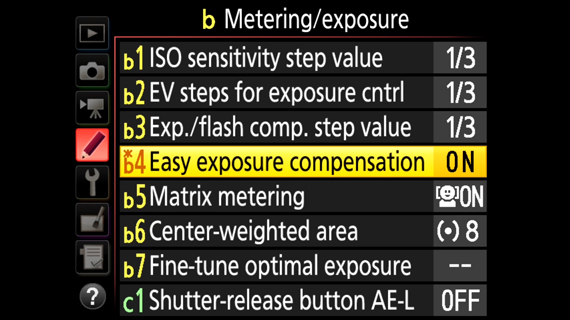
Exposure Compensation Hack

Typically, you’d press the exposure compensation button and turn the back command dial to compensate the exposure in tricky lighting situations. To make the work a bit easier, here’s what you can do:

  • Go to the camera menu and choose Metering/exposure.
  • Turn Easy exposure compensation on.

easy exposure compensation setting

This will allow you to change the exposure compensation conveniently just by rotating the back command dial, without pressing the exposure compensation button.

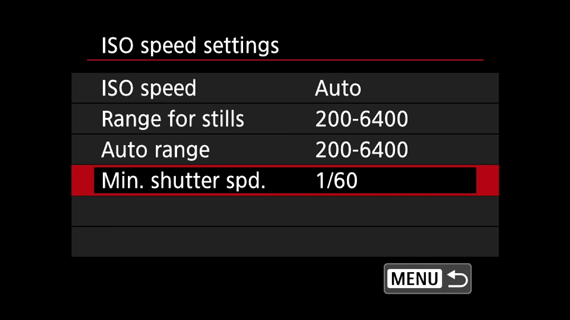
Locking Minimum Shutter Speed on Canon Cameras

To lock down the shutter speed in aperture priority mode using Canon cameras, follow these steps:

  • Go to the camera menu.
  • Go to ISO speed settings.
  • Set the ISO speed to Auto.
  • Next, go to Range for stills and set the minimum and maximum ISO.
  • Finally, set the Min. shutter speed to about 1/30 or 1/60 second.

minimum shutter speed settings in Canon camera

With these simple settings, you can improve the efficiency of the already convenient aperture priority mode. Be sure to try this out if you’ve been getting blurry images when using aperture priority mode.


Go to full article: How to Get Sharp Photos While Using Aperture Priority

What are your thoughts on this article? Join the discussion on Facebook

PictureCorrect subscribers can also learn more today with our #1 bestseller: The Photography Tutorial eBook

The post How to Get Sharp Photos While Using Aperture Priority appeared first on PictureCorrect.


from PictureCorrect https://ift.tt/2H27el0
via IFTTT

lauantai 26. kesäkuuta 2021

PictureCorrect.com: Water Surface and Waterfall Photography Tips

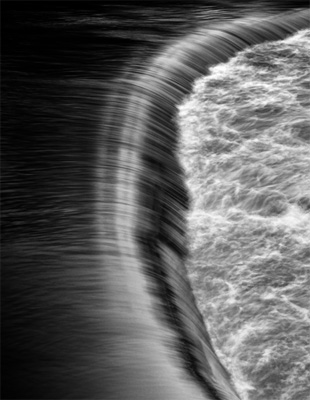
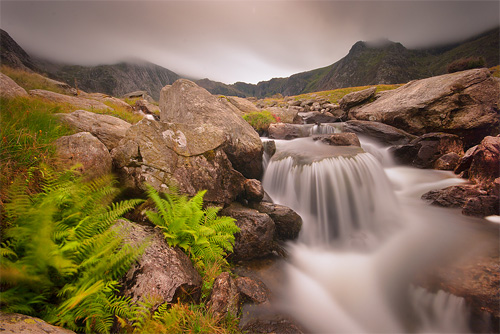
Waterfalls and streams are popular photography subjects because they can easily be made into a soothing digital desktop wallpaper. A common element in many waterfall pictures is the silky smooth appearance of the water.

water surface photography tips

Photo captured by PictureSocial member Tomas Eriksson

This is not difficult to capture, with the right tools and techniques.

Tripod

Without a tripod, pictures of silky smooth moving water would not be possible. This is because we typically use shutter speeds of 2 seconds or more, which is not possible to hand-hold without getting camera shake. The general rule of thumb for a steady shot without a tripod is the one-over-focal-length rule. If you are using a 24mm lens, the slowest shutter speed you should use is 1/24. This actually means 1/30 which is an actual shutter speed setting. Similarly if you are using a 200mm lens, you should not use any shutter speed lower than 1/200. Of course, if your lens has VR (vibration reduction) or IS (image stabilizer) you can bend this rule by a few stops. Or you have hands as steady as a rock.

Polarizing Filter or ND Filter

Circular polarizing filters are designed to reduce reflections and increase saturation. As a side effect, they also cut down about 1.5 stops of light coming through the lens.

ND filters are neutral density filters, available in different strengths. They act like sunglasses for your lens by cutting down the light coming into the lens.

Both these filters enable the shutter speed to drop to the levels that are needed to create the motion blur in the water. The circular polarizing filter has an added benefit in that it minimizes the reflective wet surfaces on the rocks, and prevents hot spots, giving you a clearer shot.

photography tips for waterfalls

“Ferns and Falls” captured by PictureSocial member Mark Broughton

Remote Release

You can use a remote release to trip the shutter, or take advantage of the self timer. Both methods can be used to enable hands-free operation of the camera when the shutter opens. This is crucial for sharp, shake-free shots. If your DSLR has a mirror lock-up function, use it as it adds another layer of stability by locking up the mirror before the shutter opens, further minimizing vibrations.

Timing and Location

Finally it’s time to use these tools to get the shot. Shooting a time when the sun is not too strong will give you the best chance of slowing down the shutter speed. This is because even at ISO100 and F22, your shutter speed may not reach the required levels if there is too much light. A shutter speed range of 2 seconds to 5 seconds is your target. Shooting in forest cover will also increase the possibility of lower light levels.

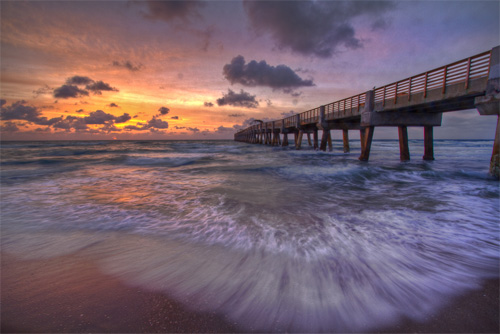
Vary your shutter speeds for different moods. There are many other variables to fine-tune, like composition, color balance and foreground interest. So keep on experimenting to get the perfect waterfall shot.

water motion photography

“Tidal Lace” captured by PictureSocial member Debra Vanderlaan

Smoothing Ripples

You can also apply this technique on other water surfaces, like lakes and dams. Ripples on a lake can be smoothed out by using a long exposure. The result is a mirror-like calmness. Reflections on this surface are sometimes rendered as wavy surreal reflections.

About the Author:
Andy Lim (www.simpleslr.info) runs a profitable photography business that spans wedding photography, commercial photography and conducting photography workshops.


Go to full article: Water Surface and Waterfall Photography Tips

What are your thoughts on this article? Join the discussion on Facebook

PictureCorrect subscribers can also learn more today with our #1 bestseller: The Photography Tutorial eBook

The post Water Surface and Waterfall Photography Tips appeared first on PictureCorrect.


from PictureCorrect https://ift.tt/3jeNZqM
via IFTTT

PictureCorrect.com: Daily Interesting Photo: Vibrant Milky Way over Waterfall

Humankind has not yet been able to land on any deep-sky celestial bodies, but we are fortunate to at least be able to see, and even photograph, their appearance. And what appearances they have: the stunning beauty of the Milky Way has inspired eager astrophotographers for many years. Photographer Paul Wilson has done an excellent job capturing the best of both worlds in a single frame:

Milky Way from the South Island in New Zealdnd

“Milky Way from the South Island, New Zealand” by Paul Wilson (Via Reddit. Click image to see full size.)

The foreground is a three-shot panorama Wilson took with his Canon EOS R camera and a 40mm Sigma Art lens, with each exposure lasting two seconds. The sky, on the other hand, is a 20-shot panorama taken with a Canon R5, a 40mm Sigma Art lens and a robotic panoramic head. Each exposure for the sky was one-minute long.

It’s quite spectacular how he was able to capture such dynamic details of the night sky. The Milky Way, with its brilliant stars, star clusters and nebulae, appears no less than a godly piece of art. Similarly, the waterfall in the foreground is no less magnificent. Thanks to the long exposure, the silky look of the water gives the scene a surreal appearance. And looking at how the arm of the Milky Way is aligned with the waterfall, one can imagine that it’s the Milky Way itself where the fall originates.

The beauty of this image is beyond words. What do you think?


Go to full article: Daily Interesting Photo: Vibrant Milky Way over Waterfall

What are your thoughts on this article? Join the discussion on Facebook

PictureCorrect subscribers can also learn more today with our #1 bestseller: The Photography Tutorial eBook

The post Daily Interesting Photo: Vibrant Milky Way over Waterfall appeared first on PictureCorrect.


from PictureCorrect https://ift.tt/3xWAYGy
via IFTTT

PictureCorrect.com: Sparkler Photography in a Home Studio Tutorial

Don’t you just hate it when you find yourself trapped inside because of the weather? A good day for photography wasted. But you can still use your creative ideas indoors and get some interesting shots. In this video, Gavin Hoey from Adorama shares his tips for creating simple, beautiful sparkler shots using a light bulb in front of the sparkler:

Here’s what you’ll need for the setup:

  • a small sparkler
  • a light bulb
  • Blu-tack adhesive
  • glossy, black floor tile (optional)
  • black background

Hoey uses the Blu-tack to hold the sparkler and the light bulb upright on a glossy floor tile. The floor tile provides some protection from the sparks and also creates a fantastic reflection. He also uses a black background at some distance from the setup so that all the attention is directed to the sparkler.

Camera Setup for Sparkler Shoot

  • Shutter speed: Since this is going to be a long exposure shot of 1 second, be sure to have a tripod handy.
  • Aperture: The sparks will cover a good distance, so aim for a greater depth of field. Hoey has his aperture set at f/11.
  • ISO: With practice, Hoey has determined that you can use an ISO of 400 to balance the exposure.

To set all these parameters, use manual mode. Also, set your focus on the middle of the light bulb by focusing manually. As the shoot will take place will all the lights turned off, auto focus will not be of help. When composing your shot, be sure to align the sparkler exactly behind the light bulb. This way, it will appear as if the sparkles are coming from the bulb.

Here is what Hoey’s image looks like. Note that it was taken with all the lights turned out.

sparkler image with bulb

Notice the underexposed metal bulb holder.

The image looks fantastic, doesn’t it? But if you look closely, you can see one small issue. While the glass portion of the light is beautifully lit, the holder at the bottom is still dark, because the sparkler cannot light it up from the back. Hoey uses a simple trick to solve the issue. He lights up his lighter and places it in front of the bulb, making sure that the metal portion is illuminated. In the process, he makes sure that the composition hasn’t changed at all. The idea is to mask in the illuminated holder during post-processing.

illuminating metal holder with a lighter

Editing a Sparkler Image in Photoshop

While most of the image looks great as is, only the metal holder parts needs to be retouched. This can be easily done by using the final image taken with the lighter. Here is how you can do it:

  1. Open both the images in the same document in Photoshop.
  2. Make sure that the image with the lighter is the top layer and the one without is the background layer.
  3. Check that the two images are in perfect alignment by changing the blending mode to Screen.
  4. Once you make sure that the two images are perfectly aligned, go to Layer > Layer Mask… > Hide All. This will hide the layer with the lighter.
  5. Next, grab a brush tool, and choose white as your foreground color. Then paint on the metal portion of the light bulb. Don’t forget to paint over the reflection.
  6. If the Blu-tack is visible, use the clone tool to remove it.

sparkler photography indoors

And there you have it, an amazing looking sparkler photo. So the next time you find yourself trapped indoors, give this technique a try and share your images with us.


Go to full article: Sparkler Photography in a Home Studio Tutorial

What are your thoughts on this article? Join the discussion on Facebook

PictureCorrect subscribers can also learn more today with our #1 bestseller: The Photography Tutorial eBook

The post Sparkler Photography in a Home Studio Tutorial appeared first on PictureCorrect.


from PictureCorrect https://ift.tt/2DtOA2U
via IFTTT

perjantai 25. kesäkuuta 2021

PictureCorrect.com: Developing Your Confidence in Photography

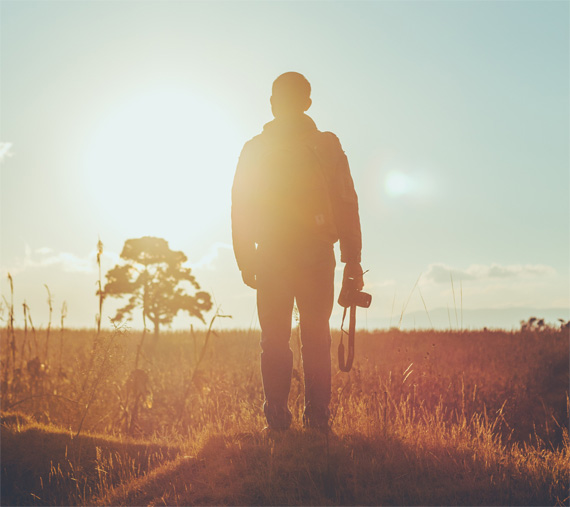
Some photographers are born oozing with confidence and self-belief, while others hide their pictures away from friends and family and spend hours with editing software tweaking and adapting their shots. The more they tweak, the less happy they are with the results they get. If you are one of those photographers, don’t give up and put the camera up for sale; there are ways to build up your confidence and self esteem.

photographer confidence

Photo by Diego PH; ISO 100, f/4.0, 1/4000s.

The first thing to remember is that you are learning, and we learn best by making mistakes.

Then, you must never forget that mastering any art is a lifetime’s work. I doubt that even the most highly regarded photographers working today think that they have all the answers. Part of the pleasure of photography is the fact that you are on a long path of learning and creativity and that you will develop your skills as you move along that path.

Finally, remember that photography is an art in which tastes and opinions vary, and so there will always be a subjective element when any photograph is being assessed. Some people will be rapturous over a picture that others merely find competent.

Constructive Criticism

To develop your confidence, develop the ability to be constructively critical of your own work and that of others. Look for what has worked well, as well as things that could be done differently and perhaps better. Most people find it easier to identify their mistakes than their achievements, so look at the photograph as though someone else has taken it.

photo feedback

Photo by David Marcu.

Technical Skills

Learn about your camera’s features. Find out what it can do in each of its settings, rather than relying on automatic to sort everything out for you. You’ll need to learn by practicing, by reading, and by learning from others, through looking at photographs in the media and in exhibitions, and through either through joining a club or taking a course.

Photography Clubs

Many people find that joining a club is ideal. It provides the opportunity to pick up tips and hints from club members who may have years of experience, to see the work produced by other photographers (some of whom will also be new to photography and therefore less confident than you), and the incentive to learn and develop by entering competitions. There is nothing like having a photograph commended in a competition to boost your self-belief!

photography club

Photo by Ben Collins; ISO 400, f/1.8, 1/400s.

The precise mix of the above will depend on your preferred way of learning and the opportunities available near you, but you can rest assured that something suitable will be near at hand. Choose wisely and you will have an hobby for life.

About the Author:
Margaret Cranford is a photographer based in Clevedon, North Somerset in the UK (redbubble.com/people/magsart). She creates and sources watercolour paintings, photographs and prints.


Go to full article: Developing Your Confidence in Photography

What are your thoughts on this article? Join the discussion on Facebook

PictureCorrect subscribers can also learn more today with our #1 bestseller: The Photography Tutorial eBook

The post Developing Your Confidence in Photography appeared first on PictureCorrect.


from PictureCorrect https://ift.tt/3gWpEo3
via IFTTT