


You’re standing in a dimly lit scene, you raise your phone, and… nothing. No Night Mode icon. No long exposure countdown. Just a regular photo that looks far darker than what your eyes can see.
If this has ever happened, you’re not imagining things — and your phone isn’t broken. Night Mode is surprisingly picky. Understanding why it turns off (and how to work around it) can dramatically improve your low-light smartphone photography.
Quick heads-up: the Smartphone Photo Guide is on New Year  Flash Sale Today
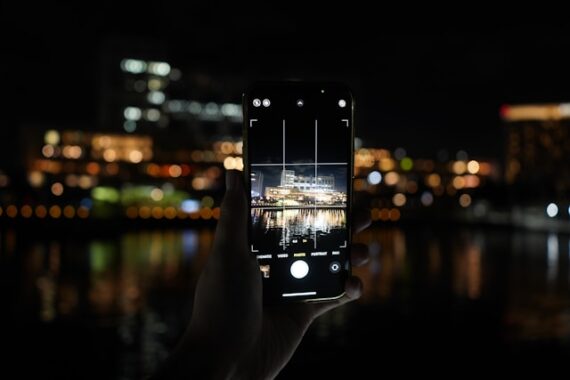
Captured by Yosuke Ota
How Night Mode Actually Decides to Turn On
Night Mode isn’t a simple on/off switch. It’s an automated decision made by your phone’s camera software based on several real-time factors:
- Available light levels
- Camera stability
- Subject motion
- Lens selection
- Exposure settings
If your phone thinks Night Mode will hurt the photo rather than help it, it simply refuses to engage.
The Most Common Reasons Night Mode Won’t Activate
1. There’s “Too Much” Light (Even If It Looks Dark to You)
Your eyes are incredible at adapting to darkness. Your phone’s camera sensor? Not so much — but it’s very literal.
Streetlights, store windows, headlights, neon signs, or even a bright moon can push the scene just above the threshold where Night Mode kicks in. The camera decides a normal exposure is “good enough” and skips Night Mode entirely.
What to do:
- Step into deeper shadow
- Reframe away from bright light sources
- Slightly cover the lens to force a darker reading (then remove your hand)
2. The Camera Detects Too Much Movement
Night Mode relies on capturing multiple frames over a longer period of time. If your phone detects motion — either from your hands or your subject — it may disable Night Mode to avoid blur and ghosting.
This includes:
- Walking while shooting
- Moving cars or people
- Wind-blown trees
- Shaky hands
What to do:
- Brace your arms against a wall or railing
- Hold your breath briefly while shooting
- Use a mini tripod or rest the phone on a solid surface
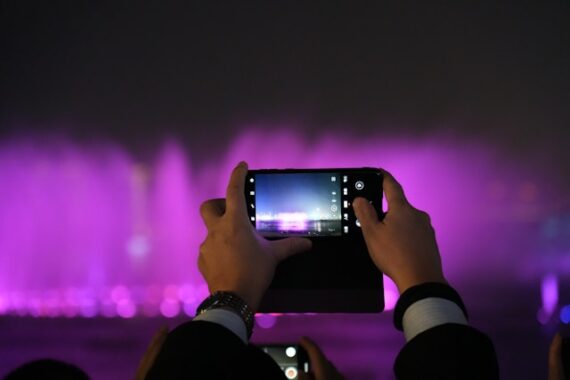
Photo captured by Robin B.
3. You’re Using the “Wrong” Lens
On many phones, Night Mode works best — or only — on the main wide lens. Ultra-wide and telephoto lenses often have smaller sensors and narrower apertures, which makes Night Mode less effective.
If you switch lenses, Night Mode may disappear instantly.
What to do:
- Switch back to the main 1× lens
- Avoid digital zoom in low light
- Move closer instead of zooming
4. Manual or Pro Settings Are Overriding It
If you’ve adjusted settings like ISO, shutter speed, or exposure compensation, your phone may assume you want full control — and disable Night Mode.
Even small tweaks can override the automatic system.
What to do:
- Reset exposure by tapping the screen and letting go
- Switch back to the standard Photo mode
- Avoid locking exposure in low light
5. The Scene Isn’t “Night Mode Friendly”
Night Mode works best for static scenes: buildings, landscapes, interiors, cityscapes. It struggles with fast-moving subjects like pets, people, concerts, or sports.
If the camera predicts excessive motion blur, it may refuse to engage Night Mode altogether.
What to do:
- Use standard Photo mode with good stabilization
- Look for moments of stillness
- Shoot bursts and pick the sharpest frame
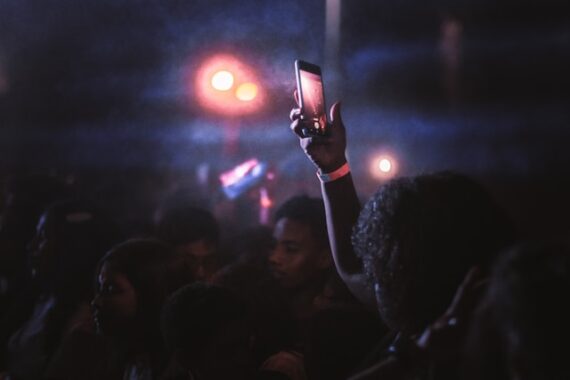
Captured by Luis Quintero
How to Force Better Night Photos (Even Without Night Mode)
When Night Mode won’t cooperate, you still have options:
- Lower exposure manually to preserve highlights
- Use available light creatively (lamps, signs, reflections)
- Stabilize the phone to allow slower shutter speeds
- Shoot RAW (if available) for better editing flexibility
In many cases, a well-stabilized normal photo can outperform a rushed Night Mode shot.
The Bottom Line
Night Mode isn’t broken — it’s cautious.
Your phone is constantly making judgment calls about light, motion, and image quality. When Night Mode disappears, it’s usually trying to protect your photo from blur or artifacts, even if it feels frustrating in the moment.
Once you understand what triggers Night Mode — and what shuts it off — you gain far more control over your nighttime photography. And sometimes, the best low-light photo comes not from forcing Night Mode… but from working with the light that’s already there.
For Further Training:
The New Year Flash Sale on the Smartphone Photography Guide is currently live, and it’s a great chance to finally unlock what your phone camera can really do.

The guide walks through real, usable techniques—manual controls, motion blur, low-light shooting, and creative effects—so you’re not just relying on auto mode and luck. If this post helped, the guide goes much deeper.
Deal ending soon: Smartphone Photography Guide New Year  Flash Sale
from PictureCorrect https://ift.tt/CA3w2LW
via IFTTT


Great article! Many people don’t realize that Night Mode may not activate if the phone detects too much movement or enough ambient light.
VastaaPoistaAnother common issue is using digital zoom in low-light situations, which often reduces sharpness and increases noise. Keeping the lens clean and moving closer to the subject can make a big difference.
For anyone interested in improving low-light photos through professional editing and real estate photography tips, you can also find helpful resources at PhePhotos https://phephotos.com/