


Motion blur is usually associated with “real” cameras—tripods, manual modes, and slow shutter speeds. But here’s the surprise: you can create intentional, creative motion blur with a smartphone, and once you know how, it opens up an entirely new look your phone photos probably don’t have yet.
Let’s break down what motion blur actually is, why phones fight against it, and how to work with your smartphone instead of against it.
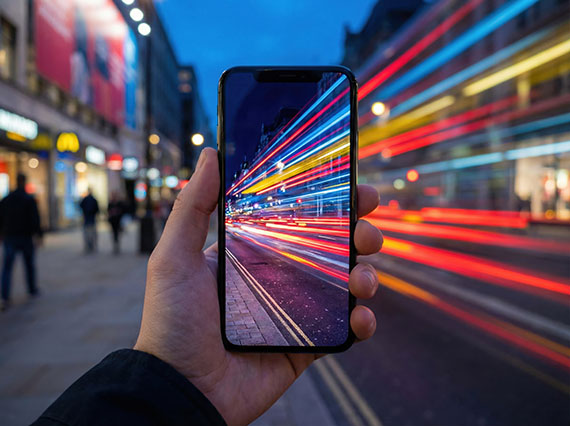
Creative photography concept of a phone capturing city traffic light trails at night.
What Motion Blur Really Is (And Why Phones Avoid It)
Motion blur happens when something moves during the exposure. That movement can come from:
- A moving subject (cars, people, water, clouds)
- Camera movement (intentional or accidental)
- Or a mix of both
Smartphones are designed to eliminate this. They:
- Use fast shutter speeds
- Stack multiple frames
- Apply aggressive stabilization
- Automatically raise ISO to avoid blur
So the trick isn’t forcing your phone to behave like a DSLR—it’s finding the cracks in the automation.
Method 1: Use Built-In Long Exposure or Motion Modes
Many phones already include a motion-friendly feature—you just need to know where to look.
What to try:
- iPhone: Use Live Photos, then apply the Long Exposure effect in the Photos app
- Android (Pixel, Samsung, others): Look for Long Exposure, Motion, or Pro Mode
What works best:
- Flowing water
- Traffic light trails
- People walking through a scene
- Clouds moving across the sky
Tip: Even a small phone tripod or resting your phone on a wall dramatically improves results.
Method 2: Pro / Manual Mode (The Most Control)
If your phone has Pro Mode, this is where motion blur really becomes intentional.
Key settings:
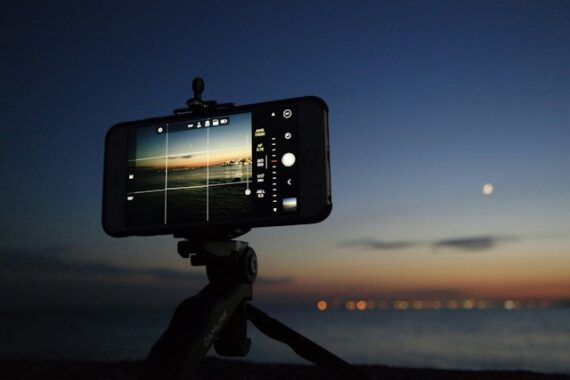
- Shutter speed: Try 1/10s, 1/5s, or slower
- ISO: Keep it as low as possible
- Focus: Lock it to prevent refocusing mid-shot
When to use it:
- Street scenes with movement
- Water fountains or waves
- Creative light streaks at night
Don’t worry if the first few shots fail—that’s part of learning how your specific phone behaves.
Method 3: Use Movement Instead of Long Exposures
No Pro Mode? No problem.
You can still create motion blur by moving the camera on purpose.
Try this:
- Pan your phone with a moving subject
- Keep the subject roughly centered
- Let the background streak naturally
This works especially well for:
- Cyclists
- Cars
- Kids running
- Pets in motion
The subject stays relatively sharp while the background blurs—no manual controls required.
Method 4: Let Night Mode Work For You
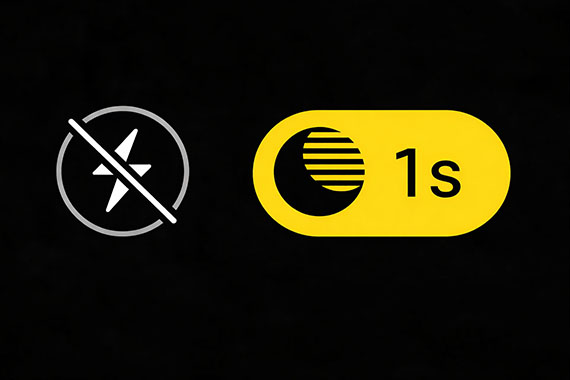
Night Mode often uses longer exposures than you realize.
How to use it creatively:
- Shoot in low light
- Brace your phone lightly (not perfectly still)
- Include movement in the scene
This creates subtle, layered blur that feels more organic than forced long exposures.
Common Motion Blur Mistakes (And Fixes)
Mistake: Everything is blurry
Fix: Stabilize the phone and let only the subject move
Mistake: No blur at all
Fix: Lower light, slower shutter, or faster subject movement
Mistake: Overprocessed results
Fix: Reduce HDR and AI enhancements when possible
Why Motion Blur Is a Skill Worth Practicing
Motion blur:
- Adds energy and emotion
- Helps photos feel less static
- Encourages experimentation instead of perfection
- Forces you to think about time, not just composition
Most smartphone photos freeze everything. Motion blur is how your images start to stand out.
Final Thought
You don’t need a “real” camera to capture motion—you just need to stop fighting your phone’s automation and start guiding it. Whether you’re using long exposure modes, Pro settings, or intentional movement, motion blur is absolutely possible on a smartphone.
Once you see it working, you’ll start looking for motion everywhere.
from PictureCorrect https://ift.tt/MbIY7jZ
via IFTTT


Very useful insights about motion blur on phone cameras. I also found this related guide helpful for improving photo quality: https://phephotos.com
VastaaPoista