torstai 22. tammikuuta 2026

PictureCorrect.com: What Happens When You Zoom on a Smartphone Camera

Zooming on a smartphone feels effortless. You pinch the screen, the subject gets closer, and the camera does the rest. But what actually happens when you zoom isn’t as simple as it looks—and it explains why zoomed-in phone photos often lose detail, look noisy, or feel overly processed. Once you understand what your phone is doing behind the scenes, you can make better choices about when to zoom and when to avoid it.

Smartphone zoom generally falls into three categories: optical zoom, digital zoom, and computational (or hybrid) zoom. Which one your phone uses depends on how far you zoom, the lenses built into your phone, and the lighting conditions at the time.

Relevant reminder: only 1 day left for the Smartphone Photo Guide New Year Offer 🎉

smartphone camera zoom

Photo captured by Fabien Maurin

Optical Zoom: Real Reach, Real Detail

Optical zoom is the best-case scenario. This happens when your phone switches to a dedicated telephoto lens—often labeled 2×, 3×, or 5×. Instead of cropping the image, the camera is physically using a lens designed to see farther away. Because of that, image quality stays intact. You keep full resolution, clean detail, and more natural textures.

The limitation is that optical zoom only works at specific magnifications. If your phone has a 3× lens, you get true optical quality at exactly 3×. As soon as you zoom a little more or a little less, the phone has to start blending in digital and computational tricks. That’s why images often look their best at those “native” zoom levels.

Digital Zoom: Cropping in Real Time

Digital zoom is what kicks in when your phone doesn’t have a lens that matches the zoom level you’ve chosen. Instead of moving glass, the camera simply crops into the image and enlarges what remains. No new detail is captured—you’re just stretching fewer pixels to fill the frame.

At low zoom levels in bright light, this can look acceptable. But as you zoom farther, quality drops quickly. Fine textures disappear, noise becomes more visible, and sharpening artifacts start to show up. By the time you reach extreme zoom levels, the image may look soft, crunchy, or smeared, especially on larger screens.

Digital zoom isn’t useless, but it’s limited. It works best when light is abundant and the subject doesn’t rely on fine detail.

Computational Zoom: The Phone Starts Guessing

Modern smartphones lean heavily on computational photography to make zoomed images look better than they technically should. When you zoom beyond a native lens, your phone may combine data from multiple lenses, merge several frames, and use AI-based processing to rebuild detail.

This is why zoomed photos can sometimes look surprisingly good at first glance. The phone is analyzing patterns and making educated guesses about what the scene should look like. The problem is that these guesses aren’t always accurate. You may notice waxy textures, strange repeating details, or overly sharp edges that don’t look natural. The farther you zoom, the more the camera is inventing rather than recording.

Why Zoom Gets Worse in Low Light

Zoom magnifies everything—including problems. When you zoom in low light, less light reaches the sensor, forcing the camera to raise ISO and slow the shutter speed. Noise increases, motion blur becomes more likely, and computational processing ramps up aggressively to compensate.

That’s why a zoomed photo taken in bright daylight can look fine, while the same shot at dusk or indoors falls apart. In low light, zoom leaves very little margin for error, especially when shooting handheld.

Zooming vs. Cropping Later

One of the most counterintuitive tips in smartphone photography is that it’s often better to shoot wide and crop later rather than zoom in-camera—especially if you’re relying on digital zoom. Shooting wide preserves the full-resolution image and avoids extra processing. Cropping later gives you more control over how much detail you sacrifice.

Optical zoom is still worth using when it’s available. But if you’re unsure whether your phone is using real zoom or digital tricks, capturing the full image and cropping afterward is usually the safer choice.

The Bottom Line

When you zoom on a smartphone, you’re not just getting closer—you’re changing how the camera captures and processes the image. Optical zoom preserves detail. Digital zoom discards it. Computational zoom tries to fill in the gaps with educated guesses.

Knowing which type of zoom your phone is using, and when, helps you decide whether to zoom, step closer, or crop later. That awareness alone can dramatically improve the quality of your smartphone photos—without changing anything about your camera at all.

For Further Training, Offer Ending Soon:

The New Year Flash Sale 🎉 on the Smartphone Photography Guide is wrapping up soon, and it’s a great chance to finally unlock what your phone camera can really do.

smartphone guide

The guide walks through real, usable techniques—manual controls, motion blur, low-light shooting, and creative effects—so you’re not just relying on auto mode and luck. If this post helped, the guide goes much deeper.

Only 1 day left: Smartphone Photography Guide New Year 🥳 Flash Sale


from PictureCorrect https://ift.tt/6AB2Etj
via IFTTT

keskiviikko 21. tammikuuta 2026

PictureCorrect.com: The Smartphone Photo Data You’re Probably Ignoring (But Shouldn’t)

Every photo you take with your phone quietly records a trail of information most people never look at.

It’s not visible in the image itself. It doesn’t change colors or sharpness. And it’s rarely mentioned in beginner photography guides.

But this hidden photo data can explain why a photo worked—or why it didn’t—and help you make better decisions the next time you shoot.

Relevant note: only a few days left for the Smartphone Photo Guide New Year Offer 🎉

smartphone photo metadata

What Is “Hidden Photo Data”?

Whenever you take a photo, your smartphone records technical details behind the scenes. This is called photo metadata.

It can include:

  • Exposure time (shutter speed)
  • ISO (light sensitivity)
  • Lens used
  • HDR or Night Mode usage
  • Time, location, and orientation

Most phones hide this information by default, but it’s easy to access once you know where to look.

Where to View Photo Metadata on Your Phone

On iPhone (Photos App)

  1. Open the Photos app
  2. Tap any photo
  3. Swipe up on the image or tap the ⓘ Info button

You’ll see details such as:

  • Exposure time and ISO
  • Lens used
  • HDR or Night Mode status
  • Date, time, and location

You don’t need any extra apps—this information is built into iOS.

On Android (Google Photos or Gallery App)

Steps vary slightly by manufacturer, but the process is similar:

  1. Open Google Photos (or your phone’s Gallery app)
  2. Tap a photo
  3. Swipe up or tap the ⓘ Info / Details icon

You’ll typically see:

  • Shutter speed and ISO
  • Lens or focal length
  • File size and resolution
  • Date, time, and location

Some Android phones even show whether AI enhancements or HDR were applied.

Exposure Time: The Silent Reason for Blur (or Sharpness)

One of the most revealing pieces of metadata is shutter speed.

If a photo looks blurry, it’s often because the shutter stayed open longer than your hands could hold steady—even if focus looked fine.

By reviewing shutter speed, you’ll learn:

  • When blur comes from movement, not focus
  • How slow your phone goes before results soften
  • When Night Mode quietly extends exposure time

This alone can dramatically improve your hit rate in low light.

ISO: When Your Phone Is Struggling for Light

ISO shows how hard your phone had to work to brighten the scene.

High ISO values often explain:

  • Grainy textures
  • Soft details
  • Washed-out colors

camera light

If you see high ISO repeatedly indoors or at night, it’s a sign to:

  • Move closer to available light
  • Stabilize your phone (or tripod)
  • Adjust composition rather than relying on software fixes

HDR and Night Mode You Didn’t Know Were On

Phones automatically apply computational modes without asking.

Metadata reveals:

  • Whether HDR was used
  • If Night Mode activated (even briefly)
  • When multiple frames were blended

This helps explain why some images look flatter, cleaner, or occasionally “smeared” when subjects move.

Once you see when these modes activate, you can predict when they’ll help—and when they’ll get in the way.

Which Lens Did Your Phone Actually Use?

Modern phones choose lenses automatically—and not always the one you expect.

Metadata can show:

  • Ultra-wide vs wide vs telephoto
  • When digital zoom replaced optical zoom
  • Why some photos look softer despite good lighting

Understanding this helps you choose focal lengths your phone handles best.

How to Use Metadata Without Overthinking It

You don’t need to analyze every photo.

Instead:

  • Check metadata on photos you love
  • Compare it to similar shots that didn’t work
  • Look for patterns, not rules

Your phone already makes exposure decisions for you. Metadata simply lets you see those decisions—and learn from them.

The Takeaway

Hidden photo data won’t magically fix bad photos.

But it will show you why things went right—or wrong—so you can improve faster without guessing.

Sometimes the biggest photography upgrade isn’t a new phone.

It’s understanding the one you already have.

For Further Training:

The New Year Flash Sale 🎉 on the Smartphone Photography Guide is wrapping up soon, and it’s a great chance to finally unlock what your phone camera can really do.

smartphone guide

The guide walks through real, usable techniques—manual controls, motion blur, low-light shooting, and creative effects—so you’re not just relying on auto mode and luck. If this post helped, the guide goes much deeper.

Found here: Smartphone Photography Guide New Year 🥳 Flash Sale


from PictureCorrect https://ift.tt/bLWp6wy
via IFTTT

tiistai 20. tammikuuta 2026

PictureCorrect.com: RAW Photos on Smartphones: What Most Guides Get Wrong

If you’ve searched for advice on shooting RAW with a smartphone, you’ve probably seen the same promises repeated over and over: more quality, more dynamic range, more professional results. While none of that is entirely false, most guides leave out the important caveats—and that’s where photographers get frustrated.

RAW on a phone is powerful, but it’s not magic. Understanding what it can and can’t do is the difference between better photos and unnecessary extra work.

Reminder: only a little while left for the Smartphone Photo Guide New Year 🎉 Flash Sale

smartphone raw camera

Mistake #1: Assuming RAW Automatically Means Better Photos

One of the biggest myths is that switching to RAW instantly improves image quality. In reality, RAW files are unfinished images. They’re flatter, duller, and sometimes noisier straight out of the camera.

On smartphones especially, JPEGs often look better at first glance because the phone applies:

  • Computational sharpening
  • Noise reduction
  • HDR blending
  • Color and contrast tuning

RAW skips most of that. It gives you data, not a polished photo. If you don’t plan to edit, RAW may actually look worse than JPEG.

Mistake #2: Ignoring Computational Photography Tradeoffs

Phones rely heavily on computational photography. Night Mode, Deep Fusion, and multi-frame HDR are responsible for many of the “wow” shots modern phones produce.

Here’s what many guides don’t mention:
Shooting RAW often disables or limits these features.

That means:

  • Less aggressive noise reduction
  • Reduced HDR blending
  • Fewer stacked frames in low light

In good light, this isn’t a problem. In difficult light, JPEG or HEIC can outperform RAW because the phone’s software is doing more behind the scenes.

Mistake #3: Treating Smartphone RAW Like DSLR RAW

RAW from a phone is not the same as RAW from a large-sensor camera.

Key differences:

  • Smaller sensor = less true dynamic range
  • Highlights clip faster
  • Shadows get noisy sooner
  • Color depth is more limited

Smartphone RAW gives you more flexibility, not unlimited flexibility. You’ll recover some highlights and shadows—but pushing files too far often reveals noise, color shifts, or banding.

Mistake #4: Using RAW in the Wrong Situations

Many guides recommend shooting RAW all the time. That’s rarely ideal.

RAW works best when:

  • Lighting is high-contrast (bright sky + dark subject)
  • You need precise white balance control
  • You plan to edit carefully
  • You want consistent results across multiple shots

JPEG or HEIC is often better when:

  • Shooting casually
  • Using Night Mode
  • Capturing quick moments
  • Storage space matters

The best photographers switch formats intentionally—not permanently.

Mistake #5: Overestimating Editing Requirements

Another misconception is that RAW requires advanced desktop editing. While deeper edits are possible on a computer, modern mobile apps handle RAW surprisingly well.

Most smartphone RAW edits involve:

  • Exposure refinement
  • Highlight and shadow balance
  • White balance correction
  • Subtle contrast adjustments

If edits are kept reasonable, RAW files from phones can look excellent without heavy processing.

What RAW on Smartphones Is Actually For

RAW isn’t about turning a phone into a DSLR. It’s about control.

It’s most useful when:

  • The camera made a poor automatic decision
  • Lighting confused HDR processing
  • Skin tones or colors matter
  • You want consistency across images

Think of RAW as a safety net—not a shortcut.

The Bottom Line

Most guides oversell RAW as a universal upgrade. In reality, it’s a tool, not a default setting.

Smartphone RAW shines when you:

  • Understand its limitations
  • Edit with intention
  • Choose it selectively

Used correctly, RAW can absolutely improve smartphone photos—but only when paired with realistic expectations and thoughtful shooting decisions.

For Further Training:

The New Year Flash Sale 🎉 on the Smartphone Photography Guide is wrapping up soon, and it’s a great chance to finally unlock what your phone camera can really do.

smartphone guide

The guide walks through real, usable techniques—manual controls, motion blur, low-light shooting, and creative effects—so you’re not just relying on auto mode and luck. If this post helped, the guide goes much deeper.

Found here: Smartphone Photography Guide New Year 🥳 Flash Sale


from PictureCorrect https://ift.tt/twiMckv
via IFTTT

maanantai 19. tammikuuta 2026

PictureCorrect.com: Top Photoshop Keyboard Shortcuts for Photographers

In the fast-paced world of digital photography, efficiency is key. Adobe Photoshop, a cornerstone in photo editing, becomes even more powerful when you master its keyboard shortcuts. Whether you’re tweaking a final masterpiece or sorting through a batch of shots, these shortcuts are essential tools in any photographer’s arsenal.

Here’s a curated list of the most useful Photoshop keyboard shortcuts that can transform your editing sessions into a seamless and swift experience.

Relevant note: only a little while left for the Photo Editing Guide 🎉 New Year Sale

photoshop keyboard shortcuts

    • Ctrl/Cmd + Z: Undo/Redo – Quickly undo or redo the last action.
    • Ctrl/Cmd + Shift + Z: Step Forward – Redo previous actions if you’ve undone too many steps.
    • Ctrl/Cmd + Alt + Z: Step Backward – Undo multiple steps in your editing process.
    • Ctrl/Cmd + J: Duplicate Layer – Quickly create a copy of your current layer.
    • Ctrl/Cmd + T: Free Transform – Resize, rotate, or warp the selected layer or object.
    • Ctrl/Cmd + L: Levels – Adjust the levels of the selected image or layer for better contrast and brightness.
    • Ctrl/Cmd + M: Curves – Open the Curves dialog box to adjust the tonality of the image.
    • Ctrl/Cmd + Shift + N: New Layer – Quickly create a new layer.
  • Ctrl/Cmd + E: Merge Layers – Merge selected layers into one layer.
  • Ctrl/Cmd + Shift + S: Save As – Save your work in a different file format or location.
  • Ctrl/Cmd + Alt + Shift + E: Stamp Visible – Combine all visible layers into a new layer without flattening the image.
  • Ctrl/Cmd + R: Show/Hide Rulers – Toggle rulers on and off for precise measurements.
  • Ctrl/Cmd + ‘: Show/Hide Grid – Toggle the grid view for aligning objects.
  • Ctrl/Cmd + + / –: Zoom In/Out – Quickly zoom in or out of your image.
  • Spacebar: Hand Tool – Hold down to temporarily switch to the Hand Tool for navigating around the image.
  • Ctrl/Cmd + Alt + Shift + K: Show Keyboard Shortcuts – Display a list of all Photoshop shortcuts.

These shortcuts are quite helpful in speeding up the editing process, allowing photographers to spend more time on the creative aspects of their work. Remember that the “Ctrl” key is used on Windows and the “Cmd” key is used on macOS.

For Further Training:

The New Year Sale on the Photo Editing Cheat Sheets is wrapping up soon, making this a great time to bring clarity to your editing workflow. If editing often feels scattered or uncertain, these cheat sheets provide a clear, repeatable process for tackling exposure, color, masking, retouching, and finishing touches in the right order.

Paired with time-saving keyboard shortcuts, they help you edit faster, stay consistent, and know when an image is truly finished.

Deal ending soon: The Photo Editing Cheat Sheets 🎉 New Year Sale


from PictureCorrect https://ift.tt/Yfjs6R2
via IFTTT

sunnuntai 18. tammikuuta 2026

PictureCorrect.com: Photographing Patterns in Cityscape Compositions

Patterns are an important element of photography composition because they add visual interest and rhythm to an image. When used effectively, patterns can create a sense of movement and draw the viewer’s eye around the frame.

Related: offer ending soon for the Composition Cheat Sheets 🥳 New Year Sale

window patterns

Photo captured by dylan nolte; ISO 800, f/2.8, 1/125s.

Capturing patterns within a city can be a fun and rewarding way to photograph the world around us. Here are some tips to help you capture stunning patterns in urban environments:

Look for repeating elements: Patterns are made up of repeated elements, so one of the first things to do when looking for patterns in a city is to scan the scene for anything that repeats. This could be architectural details like windows or balconies, or it could be natural elements like trees or bushes.

Look for contrast: Patterns often stand out more when there is a high level of contrast between the elements that make up the pattern. For example, a row of white buildings against a blue sky can create a strong visual pattern.

Experiment with different compositions: Once you have found a pattern, experiment with different compositions to capture it in the most interesting way. Try framing the pattern with other elements in the scene, or shooting it from different angles to create a unique perspective.

Use leading lines: Leading lines are lines within a scene that draw the eye towards the subject. In the case of using patterns in cityscape photography, you can use leading lines to draw the viewer’s eye towards the repeating elements and help to emphasize the pattern. Leading lines could be a row of trees, a line of buildings, or even a sidewalk.

Pay attention to the light: The way light interacts with the patterns in a scene can greatly affect the final image. Look for patterns that are lit in a way that creates interesting shadows or highlights, as this will add depth and texture to the photograph.

Experiment with composition: Patterns can be photographed from a variety of angles, so don’t be afraid to experiment with different compositions to find the one that works best for the scene. Try shooting from above to create a bird’s-eye view of the pattern, or get close to the ground for a more abstract perspective.

aerial city pattern

Photo captured by Logan Armstrong

Play with the exposure: Adjusting the exposure settings on your camera can help to bring out the details in a pattern and create a more striking image. Try using a slower shutter speed to blur any moving elements within the scene, or a higher ISO to capture patterns in low light conditions.

Use a wide-angle lens: A wide-angle lens will allow you to capture a larger scene, which can be helpful for showing the repetition of elements within a pattern. This can give your photo a sense of depth and scale, and can help to emphasize the pattern. However a telephoto lens can also work to zoom in on certain scenes.

Here are a few places where you might find interesting patterns within a city:

  • Sidewalks and streets: Look for patterns in the arrangement of tiles on sidewalks, or the lines and markings on streets.
  • Buildings: The repetition of windows, doors, and other architectural elements can create interesting patterns on the facades of buildings.
  • Public spaces: Patterns can be found in the arrangement of benches, planters, and other elements in public squares and parks.
  • Transportation: Look for patterns in the arrangement of cars on a busy street, or the repeating shapes of train tracks or subway stations.
  • Nature: Even in the midst of a bustling city, you can find patterns in the growth of plants and trees. Look for repeating shapes in the leaves of a tree, or the arrangement of petals on a flower.

These are just a few examples of the many places where you might find interesting patterns within a city. Keep your eyes open and you’re sure to discover many more!

bridge pattern

Photo captured by Norbert Braun; ISO 100, f/4.0, 1/80s.

In conclusion, capturing patterns within a city can be a fun and rewarding way to photograph the world around us. Whether you’re looking for repeating elements on the streets, interesting architectural patterns on buildings, or the beauty of nature within the city, there are endless opportunities to find and photograph interesting patterns. So grab your camera, get out there, and start exploring!

For Further Training on Composition:

Are you ever tired of your photos looking dull or boring? These popular Composition Cheat Sheets have you covered. With clear, concise information on all the essential elements of composition, you’ll never be unprepared again. They are currently 81% off for a New Year Sale 🥳 which ends soon if you want to check them out.

composition cheat sheets

Composition Cheat Sheets (see all the elements covered)

The perfect companion for any photographer. Print one out whenever you need it. These cheat sheets consolidate crucial composition-related information, allowing you to concentrate on what truly matters – composing striking photographs.

Deal ending soon: The Composition Cheat Sheets at 81% Off


from PictureCorrect https://ift.tt/8npcPFW
via IFTTT

lauantai 17. tammikuuta 2026

PictureCorrect.com: Cold-Weather Minimalism Photography Exercise

A winter exercise for cleaner, stronger compositions

If you’re looking for structured ways to practice exercises like this, the Winter Sale on the Photography Exercises is wrapping up soon. It’s designed to give you clear, hands-on assignments you can use right away—especially during slower winter shooting months.

Winter is also one of the best seasons for learning minimalism. Snow covers clutter, colors fade, and scenes naturally simplify. Instead of fighting those conditions, this exercise encourages you to lean into them and use winter as a built-in composition tool.

winter minimalism

The Goal

The goal of this exercise is to improve composition by removing distractions. By limiting how much appears in the frame, you’re forced to be intentional about placement, spacing, and balance.

The Exercise

Head out with a simple assignment: create five images that meet all of the following rules:

  • One clear subject
  • No more than two supporting elements
  • Large areas of negative space

If the scene feels busy, it doesn’t qualify. Reframe, move closer, or find a simpler angle.

What to Look For

Strong, isolated subjects
Trees, fence posts, lone footprints, street signs, or a single person in a wide space all work well. The subject should feel obvious at first glance.

subject composition

Negative space that supports the subject
Snowy fields, blank skies, frozen lakes, or open sidewalks make excellent backgrounds. Negative space isn’t empty—it gives the subject room to breathe.

Balance instead of symmetry
Minimal compositions don’t need perfect centering. Pay attention to how subject placement creates visual balance across the frame.

The Winter Advantage

Snow naturally simplifies scenes by hiding texture, color, and visual noise. What looks ordinary in summer often becomes striking in winter. Let the environment do the hard work—don’t overcomplicate it.

Why This Works

Minimalism strengthens your ability to see the frame edges and recognize what doesn’t belong. Those skills translate directly into stronger compositions in every season, especially in busy or chaotic environments.

Optional Challenge

Shoot this exercise twice:

  • Once with a wide focal length
  • Once with a longer focal length

Notice how focal length changes the feeling of space and isolation.

If you want more exercises like this—clearly structured, easy to follow, and designed to build real shooting instincts—the Winter Sale on the Photography Exercises is wrapping up soon. It’s a practical way to keep improving, even when winter limits your time and motivation to shoot.

photographer exercises

A practical way to build confidence for challenging shooting situations that often trip photographers up. Each exercise focuses on real-world scenarios—difficult light, motion, exposure decisions, and creative problem-solving—so you learn how to take control instead of relying on auto settings.

Deal ending soon: PictureCorrect Photography Exercises ❄ Winter Sale


from PictureCorrect https://ift.tt/u5G6Rfl
via IFTTT

torstai 15. tammikuuta 2026

PictureCorrect.com: Owning the Photo vs. Using the Photo: What Photographers Get Wrong

One of the most common—and costly—misunderstandings in photography is the belief that owning a photo automatically means you can use it however you want.

On the surface, that assumption makes sense. You took the photo. You edited it. You delivered it. The copyright is yours.

So what’s the problem?

The problem is that ownership and usage are two very different things, especially once images move into commercial and advertising spaces.

Related note: only a little while left for the Earn Money with Photography 🥳 New Year Sale

owning using photos

Ownership Is Automatic. Usage Is Not.

As the photographer, you typically own the copyright to the images you create. That ownership gives you certain rights—like reproducing the image, displaying it, and licensing it to others.

But ownership alone does not grant unlimited usage, particularly when other people, brands, or properties appear in the image.

That’s where many photographers get tripped up.

The Moment an Image Becomes an “Ad,” the Rules Change

Using a photo in a portfolio, on a personal website, or in an editorial context is very different from using it to promote a business, product, or service.

Once an image is used in advertising:

  • Model rights matter more
  • Property rights matter more
  • Client expectations matter more
  • Contracts matter a lot more

Even if you own the image, you may not have the right to use it commercially without permission.

The Most Common Mistake: Assuming Past Work Is Fair Game

Many photographers assume that images from old client shoots are safe to reuse in:

  • Social media ads
  • Website banners
  • Email marketing
  • Paid promotions

But unless your contract clearly allowed commercial self-promotion—or you have appropriate releases—those images may be off-limits.

This is especially true for:

  • Portraits
  • Lifestyle shoots
  • Weddings
  • Corporate sessions
  • Brand-related content

Just because a client paid for the shoot doesn’t mean they agreed to be featured in advertising later.

Model Releases Are Not a Magic Shield

Another common misunderstanding is believing that a model release automatically allows all commercial uses.

In reality:

  • Releases are often limited in scope
  • Some cover editorial use but not advertising
  • Some allow client use, but not photographer advertising
  • Some don’t exist at all for older shoots

Without a release that clearly allows commercial promotion, using the image in ads can create real risk—even if the subject originally agreed to be photographed.

“But It’s My Portfolio” Isn’t Always a Defense

Portfolio use is often allowed—but ads are not portfolios.

A paid ad is designed to generate revenue, leads, or business. That distinction matters legally and contractually.

A photo sitting quietly on your website is very different from the same image being pushed into paid social feeds or used as a promotional banner.

This is where photographers unintentionally cross the line.

Contracts Are Where This Gets Solved (or Not)

Most problems don’t come from bad intentions. They come from vague contracts.

Phrases like:

  • “May be used for marketing”
  • “Can be used for promotion”
  • “Includes commercial use”

sound helpful, but they’re often too broad—or too unclear—to protect anyone.

Clear contracts spell out:

  • Who can use the image
  • How it can be used
  • Where it can appear
  • For how long
  • Whether paid advertising is allowed

Without that clarity, assumptions fill the gap.

Why This Matters More Than Ever

Images don’t stay in one place anymore.

A single photo can quickly move from:

  • Website → social post → paid ad → partner promotion

Each step increases exposure—and potential problems—if usage rights weren’t clearly defined upfront.

What felt harmless years ago can suddenly matter a lot.

The Bottom Line

Owning the photo gives you rights.
Using the photo—especially in advertising—requires permission.

When photographers blur that distinction, they expose themselves to unnecessary risk, damaged client relationships, and avoidable disputes.

The fix isn’t complicated. It’s clarity:

Clear contracts

Clear releases

Clear understanding of how images will be used

Because in photography, ownership is just the starting point—not the finish line.

For Further Training:

This in-depth eBook has helped thousands of photographers turn their passion into profit—and here it’s at its lowest price ever to start the New Year🥳.

photography career

Packed with proven strategies in all types of photography and even printable contract templates you can use with clients right away, it’s your shortcut to making money with photography.

Deal ending soon: Earn Money with Photography New Year Sale


from PictureCorrect https://ift.tt/aUPcbLF
via IFTTT

keskiviikko 14. tammikuuta 2026

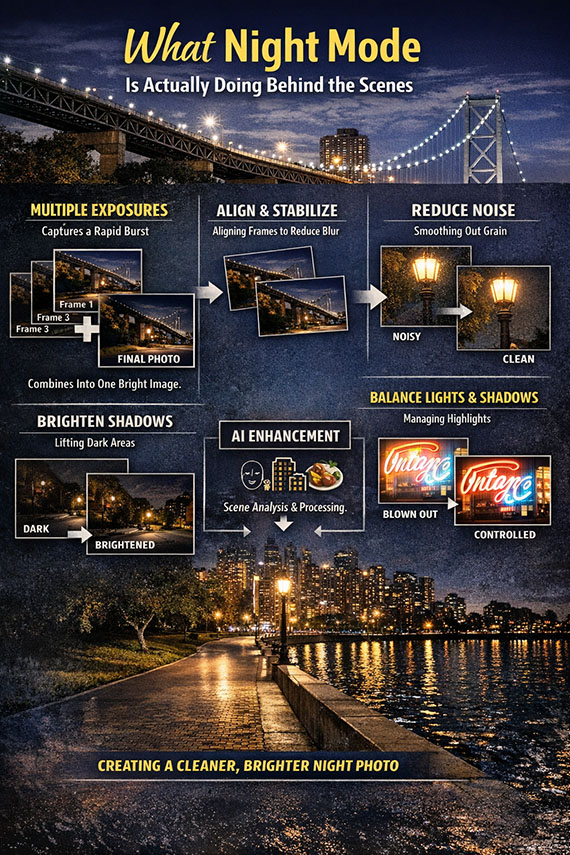
PictureCorrect.com: Why Your Phone Camera Sometimes Refuses Night Mode (And What to Do)

You’re standing in a dimly lit scene, you raise your phone, and… nothing. No Night Mode icon. No long exposure countdown. Just a regular photo that looks far darker than what your eyes can see.

If this has ever happened, you’re not imagining things — and your phone isn’t broken. Night Mode is surprisingly picky. Understanding why it turns off (and how to work around it) can dramatically improve your low-light smartphone photography.

Quick heads-up: the Smartphone Photo Guide is on New Year 🎉 Flash Sale Today

smartphone night mode

Captured by Yosuke Ota

How Night Mode Actually Decides to Turn On

Night Mode isn’t a simple on/off switch. It’s an automated decision made by your phone’s camera software based on several real-time factors:

  • Available light levels
  • Camera stability
  • Subject motion
  • Lens selection
  • Exposure settings

If your phone thinks Night Mode will hurt the photo rather than help it, it simply refuses to engage.

The Most Common Reasons Night Mode Won’t Activate

1. There’s “Too Much” Light (Even If It Looks Dark to You)

Your eyes are incredible at adapting to darkness. Your phone’s camera sensor? Not so much — but it’s very literal.

Streetlights, store windows, headlights, neon signs, or even a bright moon can push the scene just above the threshold where Night Mode kicks in. The camera decides a normal exposure is “good enough” and skips Night Mode entirely.

What to do:

  • Step into deeper shadow
  • Reframe away from bright light sources
  • Slightly cover the lens to force a darker reading (then remove your hand)

2. The Camera Detects Too Much Movement

Night Mode relies on capturing multiple frames over a longer period of time. If your phone detects motion — either from your hands or your subject — it may disable Night Mode to avoid blur and ghosting.

This includes:

  • Walking while shooting
  • Moving cars or people
  • Wind-blown trees
  • Shaky hands

What to do:

  • Brace your arms against a wall or railing
  • Hold your breath briefly while shooting
  • Use a mini tripod or rest the phone on a solid surface
motion sensing

Photo captured by Robin B.

3. You’re Using the “Wrong” Lens

On many phones, Night Mode works best — or only — on the main wide lens. Ultra-wide and telephoto lenses often have smaller sensors and narrower apertures, which makes Night Mode less effective.

If you switch lenses, Night Mode may disappear instantly.

What to do:

  • Switch back to the main 1× lens
  • Avoid digital zoom in low light
  • Move closer instead of zooming

4. Manual or Pro Settings Are Overriding It

If you’ve adjusted settings like ISO, shutter speed, or exposure compensation, your phone may assume you want full control — and disable Night Mode.

Even small tweaks can override the automatic system.

What to do:

  • Reset exposure by tapping the screen and letting go
  • Switch back to the standard Photo mode
  • Avoid locking exposure in low light

5. The Scene Isn’t “Night Mode Friendly”

Night Mode works best for static scenes: buildings, landscapes, interiors, cityscapes. It struggles with fast-moving subjects like pets, people, concerts, or sports.

If the camera predicts excessive motion blur, it may refuse to engage Night Mode altogether.

What to do:

  • Use standard Photo mode with good stabilization
  • Look for moments of stillness
  • Shoot bursts and pick the sharpest frame
night mode troubleshooting

Captured by Luis Quintero

How to Force Better Night Photos (Even Without Night Mode)

When Night Mode won’t cooperate, you still have options:

  • Lower exposure manually to preserve highlights
  • Use available light creatively (lamps, signs, reflections)
  • Stabilize the phone to allow slower shutter speeds
  • Shoot RAW (if available) for better editing flexibility

In many cases, a well-stabilized normal photo can outperform a rushed Night Mode shot.

The Bottom Line

Night Mode isn’t broken — it’s cautious.

Your phone is constantly making judgment calls about light, motion, and image quality. When Night Mode disappears, it’s usually trying to protect your photo from blur or artifacts, even if it feels frustrating in the moment.

Once you understand what triggers Night Mode — and what shuts it off — you gain far more control over your nighttime photography. And sometimes, the best low-light photo comes not from forcing Night Mode… but from working with the light that’s already there.

For Further Training:

The New Year Flash Sale 🎉 on the Smartphone Photography Guide is currently live, and it’s a great chance to finally unlock what your phone camera can really do.

smartphone guide

The guide walks through real, usable techniques—manual controls, motion blur, low-light shooting, and creative effects—so you’re not just relying on auto mode and luck. If this post helped, the guide goes much deeper.

Deal ending soon: Smartphone Photography Guide New Year 🥳 Flash Sale


from PictureCorrect https://ift.tt/CA3w2LW
via IFTTT

tiistai 13. tammikuuta 2026

PictureCorrect.com: Viewpoint and Angles in Photography

The point and shoot generation creates a problem when attempting to shoot great images. If you tend to point and shoot without much thought, you are already at a disadvantage when trying to take a great photo. Finding the nearest viewpoint and pushing the shutter button will hardly ever result in a great image. The point and shoot principle is the enemy of good images. When shooting an image you have to consider viewpoint as a key to a great composition. So, how can your viewpoint improve your image? Here’s how.

Related: offer ending soon for the Composition Cheat Sheets 🥳 New Year Sale

viewpoint composition

Photo by Francesco Luca Labianca; ISO 800, f/4.0, 1/1250-second exposure.

1. Do your homework

You need to know what to expect when going to a new location to take photos. Do a little research and ascertain what there is available in order to create your perfect shot. Knowledge is power, and if you want to create powerful images, do the homework. Know what to expect and where the elements will fit in the final image.

2. Use your feet after your head

Once you know what there is and you’ve planned the basic shoot, use your feet. Try variations and move around the location with your camera to your eye and see if there are any other viewpoints that will improve the image. See if there is perhaps another part of the location that will elevate you, take you down a level, or just give a variation of your initial idea.

3. Look for unusual angles

This can be from lying down on your back to climbing a tree or nearby staircase. Shooting from low down or high up gives a completely different perspective compared to a front and center shot. Trial and error are two great learning companions for any photographer, so use them. Another angle you can try is tilting the camera. This works well with good angle changes. A slight change makes the photo look like the photographer was a little tipsy, so make sure the viewer will know that the angle is part of the composition.

interesting camera angle

“Down on the Ground with a Camera…” captured by Alan Levine

4. Fill the frame

You can have the perfect location, a great viewpoint, and a unique angle, but if the subject is too far away the image can look a little average, so get in closer. Fill the frame with more of your subject. Always ask the question whether the composition is tight enough. If it isn’t, move your feet or change the lens. Exclude unnecessary elements or clutter to get the best out of the composition..

5. Take a chance

It’s often only the adventurous who take chances. I am not talking about risks but rather compositional chances such as shooting without looking through your viewfinder. Swing your camera around by the strap with the timer on. Hold it high above your head or down at your ankles. Remember to shoot a lot as many of these images won’t look good, but on the odd chance of something looking great, you should take the chance.

unusual angle photography

“X” captured by Thomas Leth-Olsen

Viewpoint is vitally important to any photo so always be very aware of your position in relation to the subject or object of interest. And, don’t forget safety. Watch where you walk and how high you get. Don’t compromise your safety for that perfect image. Looking at your award winning image from a hospital bed just doesn’t have the right feeling of achievement. Happy shooting!

About the Author:
Wayne Turner has been teaching photography for 25 years and has written three books on photography. He has produced 21 Steps to Perfect Photos, a program of learner-based training using outcomes based education.

For Further Training on Composition:

Are you ever tired of your photos looking dull or boring? These popular Composition Cheat Sheets have you covered. With clear, concise information on all the essential elements of composition, you’ll never be unprepared again. They are currently 81% off for a New Year Sale 🥳 which ends soon if you want to check them out.

composition cheat sheets

Composition Cheat Sheets (see all the elements covered)

The perfect companion for any photographer. Print one out whenever you need it. These cheat sheets consolidate crucial composition-related information, allowing you to concentrate on what truly matters – composing striking photographs.

Deal ending soon: The Composition Cheat Sheets at 81% Off


from PictureCorrect https://ift.tt/c1BsHMz
via IFTTT

maanantai 12. tammikuuta 2026

PictureCorrect.com: Snow Photography: 5 Quick Tips

Quick reminder: only a little while left for the Winter Photo Snap Cards Launch Sale

Winter is upon us with snow already falling across the country. There is nothing more serene than a fresh snowfall, but capturing a winter landscape full of white can be challenging to get right. Here are a few tips to help you ace those snowy shots.

winter cabin

1. Expose to the Right… A Lot

Snow means a lot of white, and white can trick the auto balance in your camera and lead to underexposed images. The metering system of your camera will try to expose white snow to middle gray. You want to overexpose your image to make sure white snow is, indeed, white. Be sure to constantly check and adjust your exposure.

2. Keep Your Palette Minimal

Winter scenes are often meant to be calming and do not need too many colors or over editing. Stick with “winter colors” like whites, blues, and greens to keep your images simple. If you’re trying to evoke Christmas, then feel free to break out the red!

snowy landscape

3. Shoot Any Time of Day

In the winter there is no need to limit yourself to shooting at sunset because the sun will stay much lower in the north and south and the days are often overcast. This makes a large majority of the day a viable option for photography.

4. Check Your Metering Mode

Metering is how your camera determines the correct shutter speed and aperture based on the amount of light that goes into the camera. Most DSLRs are automatically set in matrix metering or evaluative metering mode, which divides the camera into zones to determine the correct exposure. In the snow, you don’t want to leave your camera in this mode because it will average the image and expose for grey. Instead, try spot metering the brightest part of the snow.

5. Stay Warm

The best piece of advice for shooting in the winter is to be well protected from cold weather and dress warmly. If you’re not comfortable you cannot enjoy the photo and you won’t get a good memory. Be sure to dress warm and wear waterproof clothing.

If you plan to take to the snow, don’t forget to follow these easy tips. A warm outfit and special attention to your settings will go far and result in amazing shots for your holiday card, portfolio, or Instagram.

About the Author
Francesco Carucci from Dreamstime is a travel and landscape stock photographer outside of his daily desk job, spending most of his spare time chasing the light.

For Further Training:

If you want help capturing better photos in snowy or low-light winter conditions, the new Winter Photography Snap Cards (currently 80% off) are worth checking out—especially while they’re still heavily discounted. These pocket-sized guides give you quick, practical tips for exposure, color, composition, and handling tricky winter light.

winter snap cards

They also walk you through common challenges like blown-out snow, blue color casts, foggy lenses, and fast-changing skies, so you can adjust your settings with confidence. Whether you’re shooting frosty landscapes, falling snow, or cozy evening scenes, these cards make it easier to get great winter shots without guesswork.

Launch sale ending soon: Winter Photography Snap Cards at 80% Off


from PictureCorrect https://ift.tt/sbc24Jk
via IFTTT