keskiviikko 28. toukokuuta 2025

PictureCorrect.com: 8 Common Scenarios Where Photographers Use Masking

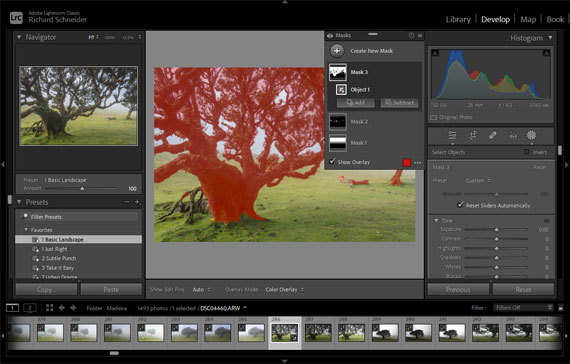
Masking is one of the most powerful tools in any photo editing workflow. Whether you’re using Lightroom, Photoshop, or another editing app, masks let you apply changes selectively—so you’re not affecting the whole image when you only want to target one part.

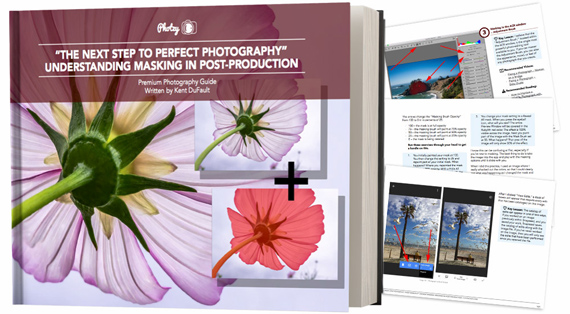
Also keep in mind that this in-depth guide on Understanding Masking in Photo Editing is currently 68% off, but that sale is wrapping up soon.

But when should you reach for the mask tool? Here are some of the top situations photographers rely on masking to take their images to the next level:

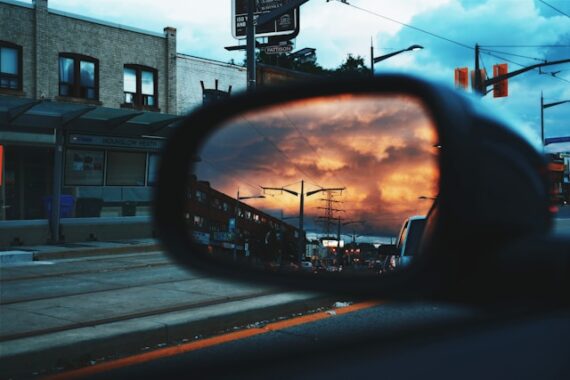
photo masking

Photo captured by Patrick Tomasso

1. Sky Enhancements

A common use of masking is separating the sky from the rest of the scene. You might want to darken an overexposed sky, boost the blue tones, or add drama to a sunset without affecting the foreground. Most modern software now includes AI-powered sky masks, making this process fast and accurate.

2. Subject Isolation

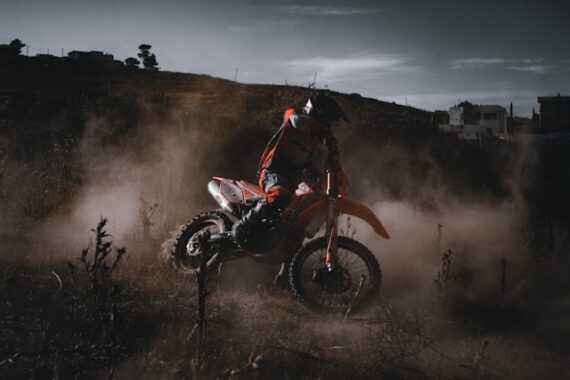
Portrait photographers often use masks to make their subjects pop. By isolating the person from the background, they can add clarity, adjust exposure, or subtly enhance contrast—without unintentionally altering the entire frame.

3. Dodging & Burning

This classic technique is about selectively lightening (dodging) or darkening (burning) areas of an image to guide the viewer’s eye. With masks, photographers can apply these adjustments precisely—often using radial or brush masks to work on faces, hands, or specific highlights.

4. Sharpening Specific Areas

Rather than applying global sharpening (which can increase noise or halos), many photographers sharpen only key areas—like eyes in a portrait or the focal point in a landscape. A well-placed mask ensures crisp detail where it matters most.

5. Color Grading Targeted Regions

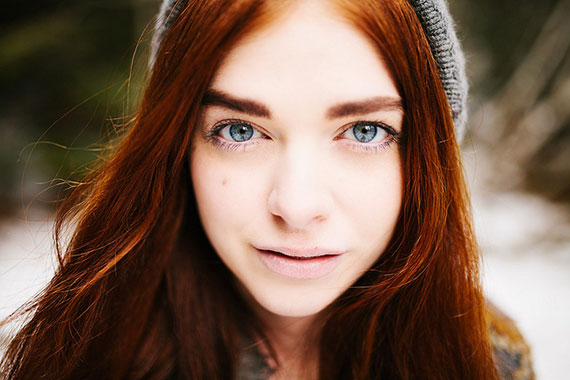
Want warmer tones in the foreground but cool shadows in the background? Masks allow for local color grading, helping to create mood, depth, or even a storytelling element without compromising balance across the whole image.

color grading

Photo captured by Giuseppe Patriarchi

6. Correcting Local Exposure Issues

Sometimes, one part of your photo is too dark or too bright. Masking lets you fix that exact area—like lightening a shadowed face under a hat or toning down a blown-out window—without touching the rest of the image.

7. Enhancing Texture or Detail

If you’re editing a landscape with both mountains and water, for example, you might want more texture in the rocks and a smoother look in the water. Using masks, you can adjust clarity, texture, and dehaze sliders independently for each region.

8. Adding or Controlling Vignettes

Rather than applying a standard vignette to the entire image, some photographers create custom radial masks to darken or lighten just the corners or edges, guiding the viewer’s attention more naturally toward the subject.

Final Thoughts

Masking might seem like a technical detail, but in practice, it’s a creative powerhouse. It gives you control, precision, and the ability to fine-tune your edits exactly where they matter. If you’re not using masking regularly, it might be the missing piece in your editing workflow.

Want to improve your editing even more? Try practicing with one photo and create three different versions—each using masks to highlight a different subject or mood. You’ll quickly see just how versatile this tool can be.

For Further Training:

Achieving perfect photography requires more than just in-camera skills in today’s environment. Yes, even the professionals now rely on post-production skills to PERFECT their images. One of the most important photo editing skills to learn is called “Masking” and an in-depth guide is now available to help photographers master it. It is 68% off if you want to check out the table of contents.

understanding masking

Masking: A Critical Skill for Photo Editing

After you read this new masking guide you’ll realize that you are no longer tied to what you find. You can clean up the bugs in your shots. Fix those less than perfect rose petals. Take out that pesky truck that parked right in the middle of your landscape shot.

Only a few days left: Understanding Masking for Photographers at 68% Off


from PictureCorrect https://ift.tt/0pUbHBR
via IFTTT

maanantai 26. toukokuuta 2025

PictureCorrect.com: 7 Beginner Tips For Sharper Photos

Scott Kelby, the author of many digital photography books says, “If your photos aren’t sharp then the rest doesn’t matter.” Key to any image is its sharpness, and in order to get those photos pin sharp you need to follow some basic guidelines.

Relevant reminder: launch sale ending soon on Photo AI for Image Quality

what to do for sharper crisper photographs

Photo by Mike Monaghan

There’s nothing worse than looking at a portrait photo and seeing that the eyes are out of focus with a perfectly sharp nose. The eyes are the windows to the soul and their sharpness is critical to a good image. There are times when we want slightly out of focus images or parts of images out of focus. But, mostly we want crisp and clear images. Here are some steps for sharper images:

1. Pin sharp starts with a tripod

Every professional photographer, and many amateurs, will tell you that a tripod is an essential part of your gear if you want sharp images. Of course it’s not always possible to use one, but, when you can, use one. It stabilizes your camera and stops camera shake from unsteady hands. A good, sturdy tripod costs money, but it’s a basic part of your kit and fundamental to sharp images. Many photographers also opt for small flexible tripods that can be wrapped around objects and work in virtually any situation.

2. Cable Release or Remote

Don’t press the shutter; use a cable release. A cable release is a cable that goes to a connection on your camera. By pressing the cable release you don’t transfer any movement from your hand to the camera. The same can be done with a wireless remote.

3. Self-Timer

If you have forgotten to bring your cable release or your compact camera doesn’t allow its use, use the self-timer. All cameras, including compacts, have this feature. Although you still press the shutter, there is a time delay of 2 to 10 seconds, allowing camera shake to subside before the shutter is activated. Still, you need to press the shutter button gently to limit any transferred shake.

how to take the sharpest photos

Photo by Michaela Loheit; ISO 100, f/8.0, 1/640-second exposure.

4. Mirror lock-up

This feature is something only for digital SLR camera owners. When the shutter is depressed, a mirror, which is in between your sensor and the viewfinder, pops up to allow light to pass and hit your sensor. This micro movement can affect your final image so what manufactures have added is a mirror lock-up. It locks the mirror in position once you have composed your image. Although you can no longer see the image through the viewfinder it prevents the micro movement from affecting your image. Use it if you are fanatical about sharpness.

5. Use your lens’s sharpest aperture

All lenses have a sweet spot. They are sharpest at this aperture–usually two stops below fully open. Unfortunately, this applies only to DSLRs. You should be able to tell by looking at your images and finding which images are usually the sharpest. Check the EXIF data by right clicking on your image on the computer and seeing what aperture it was taken at. Then shoot at this aperture whenever you can.

6. ISO

Avoid increasing your ISO as this causes your image sharpness to degrade. Instead, shoot on a tripod. Shooting on higher ISOs adds noise to the images, which is the reason for images lacking in sharpness.

tips for sharper images

Photo by wbeem; ISO 100, f/3.5, 1/40-second exposure.

7. Turn off image stabilization

When using a tripod, if you have a lens or camera that has image stabilization or vibration reduction, you will probably want to turn it off. There are tiny motors inside the lens which stabilize the image but also contribute to lack of sharpness through vibration. They are great for low light/handheld situations like weddings, but when you’re using a tripod, turn it off.

These are a just a few tips for getting sharper images. No single one will improve your sharpness, but used together they will improve your overall sharpness in an image.

About the Author:
Wayne Turner has been teaching photography for 25 years and has written three books on photography. He has produced 21 Steps to Perfect Photos; a program of learner-based training using outcomes based education.

For Further Help with Image Sharpening:

In photo editing news, Topaz Photo AI was recently updated to version 4. The company has marked it down $30 off until tomorrow if you want to try it out.

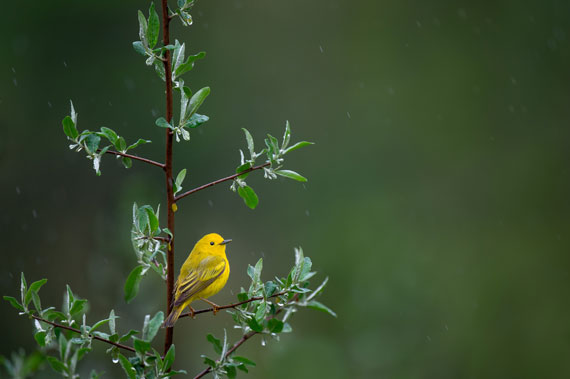
topaz photo ai bird

New: Topaz Photo AI (see how it works)

Sharpen, remove noise, and increase the resolution of your photos with tomorrow’s technology. Topaz Photo AI supercharges your image quality so you can focus on the creative part of photography.

Only 1 day left: Topaz Photo AI at $30 Off


from PictureCorrect https://ift.tt/i7DSQBM
via IFTTT

sunnuntai 25. toukokuuta 2025

PictureCorrect.com: How to Use Autopilot in the Photo AI Editor

Photo AI’s new Autopilot feature makes photo editing faster and smarter. Whether you’re working with high-ISO images, fast action shots, or lower-resolution files, Autopilot automatically analyzes your image and recommends the best enhancements—like denoising, sharpening, upscaling, and lighting adjustments. With just one click, you get a professionally enhanced result that you can still fine-tune manually.

There are only a few days left to pick up the Photo AI Editor at $30 off for their most recent launch sale.

Here’s how to use Autopilot AI to improve your images step-by-step:

autopilot ai

Step 1: Launch Topaz Photo AI

Open the application on your desktop.

Step 2: Import a Challenging Image

Drag and drop or browse to select a photo that could use some help—this could be a blurry action shot, a noisy low-light image, or a photo with poor resolution.

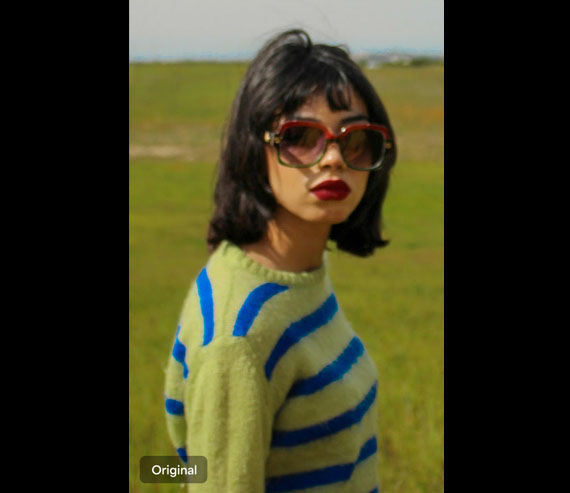
before image

Step 3: Let Autopilot Analyze Your Image

Autopilot will immediately scan the photo and suggest enhancements tailored to its specific issues. You’ll typically see recommendations for:

  • Remove Noise (RAW or normal)
  • Sharpen
  • Upscale (if needed)
  • Lighting & Exposure Adjustments

Step 4: Refine with Manual Adjustments

Want more control? You can override or adjust any enhancement suggestion using the manual sliders and toggles.

Step 5: Stack Enhancements

Autopilot’s suggestions can be layered—for example, denoise and adjust lighting—to create a balanced, final image.

after image

Step 6: (Optional) Set Autopilot as the Default

If you’re happy with the results, you can save even more time by enabling Autopilot for every future image import.

How to Enable Autopilot by Default:

Mac:
Topaz Photo AI > Preferences > Autopilot > Toggle On > Save

Windows:
Edit > Preferences > Autopilot > Toggle On > Save

By using Autopilot AI, you streamline your editing workflow and still retain full control over the final result. Try it on your next image and see how much time it saves!

Launch Sale Ending Soon:

The latest release of Photo AI (version 4) with Autopilot introduces several powerful tools and improvements designed to enhance image editing capabilities. They are also offering it at $30 off today to celebrate the release if you want to check it out.

Only a few days left: Photo AI Version 4 Launch Sale


from PictureCorrect https://ift.tt/ulzGYcp
via IFTTT

keskiviikko 21. toukokuuta 2025

PictureCorrect.com: Masking: The Secret to Perfect Photos

I think we can all agree that our goal is to make our photos as perfect as possible.

Some of that process occurs within the camera. However, in the era of digital photography, we are given far greater tools to work with than our previous brethren had with just film.

The key to perfection is post-processing.

And the key to perfection in post-processing comes with masking.

Relevant note: only a little while left for the In-depth Masking Guide at 68% Off

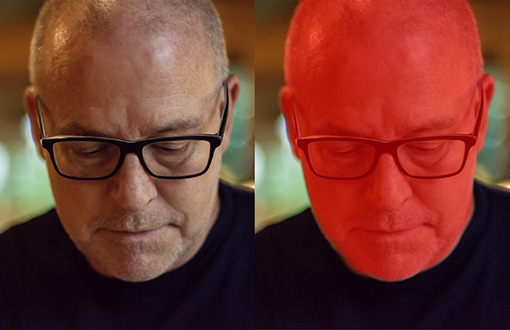
example of masking in adobe photoshop

Photo by Kent DuFault

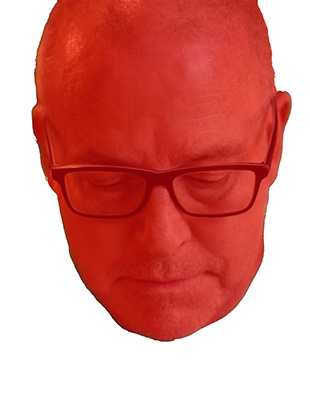
In this example photo above, the version on the left has no mask. The version on the right has the head masked from the rest of the picture.

All the possibilities for masking are too great to cover in a simple quick tip.

masking photoshop tutorial

Photo by Kent DuFault

Today, I want to give you a firm foundation on what masking is and how you can learn to make it work for you in your photography.

With masking, you can take different parts of different photos and combine them into a new picture. This would be an advanced masking technique.

example of mask transparency photoshop

Photo by Free-Photos, editing by Kent DuFault

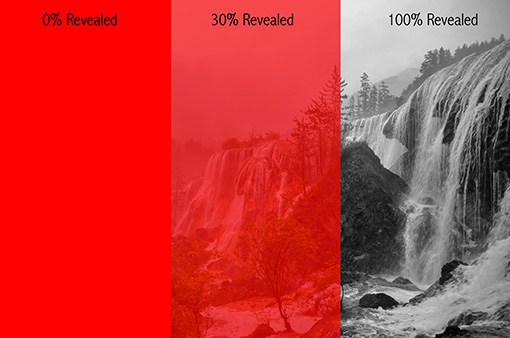
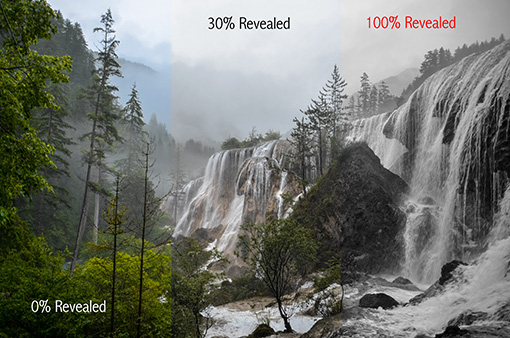
Most post-processing editing programs will allow a varying degree of transparency for a mask. This means that a mask can be applied at 100%, 0%, or anything in-between.

photoshop lightroom mask explained

Transparency Percentage

Above is the example with a black-and-white preset applied:

  • A 100% revealed mask is a black and white photo
  • A 30% revealed mask has a subdued color effect
  • A 0% revealed remains a full-color photograph

Quick Tip: You can vary the transparency of a mask from zero-to-100% in certain programs and with certain tools.

Masks are an essential tool to change a part of your photo while leaving the rest of the image alone.

Remember These Terms:

A global edit is one that affects the entire picture. A localized edit is one that affects only a portion of a photograph. The part of a photograph that a localized edit changes is determined by a mask.

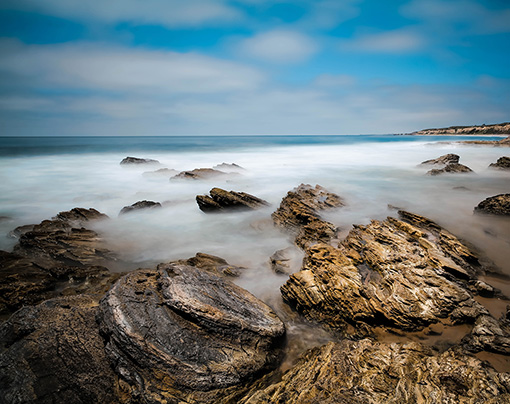
example photo for masking in photoshop

Photo by Jung Ho Park via Unsplash

For example, in the above photo, I want to slightly darken the lighter rocks in the foreground on the right, so that the circular stones in the center-left are more prominent within the composition.

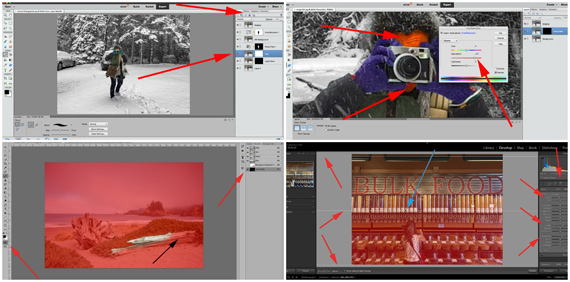
masking lightroom walkthrough

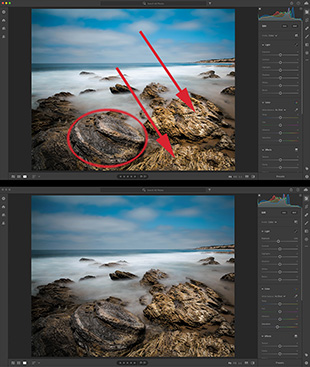
Masking a seascape

I want to darken the rocks at the red arrows while preserving the rest of the picture so that the stones in the red oval become more dominant.

On the bottom of the example photo above, I did a global adjustment using the Exposure slider in Lightroom CC.

It didn’t work out very well, as the entire picture became darker (global edit), and the round rocks don’t stand out at all.

masking lightroom tutorial

Masking tools

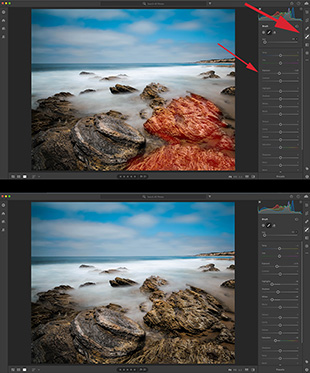
In the top half of the example photo above, I am using Lightroom CC to complete a localized edit.

I chose the Adjustment Brush, and I painted a mask over the rocks that I wish to change.

The larger red arrow points to the Adjustment Brush tool in Lightroom CC. The smaller red arrow points out my Exposure adjustment to the mask.

Quick Tip: In Lightroom, you can cycle the view of a mask on and off using the O key.

At the bottom half of the example photo above, you can see how my mask has darkened the rocks to the right, making the circular stones more visually prominent in the foreground.

Quick Tip: A mask can be created and applied in a distinct manner, such as by using the Adjustment Brush. However, at other times, masks are operating in the background, and you may not even realize they are there.

masking lightroom walkthrough

Masking brushes

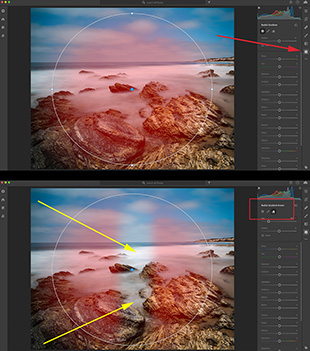
Some tools, like the Linear Gradient Tool and the Radial Tool, automatically create a mask in the background.

You may not realize that it’s there unless you press the O key to turn it on. Any mask, even an auto-generated one, can be edited—and this is the real power behind masking!

Quick Tip: Cycle the mask view on while you create the mask. Then cycle the mask view off while you make your adjustments with the sliders. If the modification you’re making isn’t affecting a part of the picture, you can add to the mask with the Brush tool. If the mask is changing a part of the image you don’t want it to, erase part of the mask with the Eraser tool. You can see these tools in the red box in my image above. The yellow arrows indicate how I’ve changed the mask using the tools mentioned earlier.

Masking opens up your photography to limitless possibilities!

About the Author:
Kent DuFault is an author and photographer with over 35 years of experience. He’s currently the director of content at the online photography school, Photzy.com.

For Further Training:

Achieving perfect photography requires more than just in-camera skills in today’s environment. Yes, even the professionals now rely on post-production skills to PERFECT their images. One of the most important photo editing skills to learn is called “Masking” and an in-depth guide is now available to help photographers master it. It is currently 68% off today if you want to check it out.

understanding masking

Masking: A Critical Skill for Photo Editing

After you read this new masking guide you’ll realize that you are no longer tied to what you find. You can clean up the bugs in your shots. Fix those less than perfect rose petals. Take out that pesky truck that parked right in the middle of your landscape shot.

Deal ending soon: Understanding Masking for Photographers at 68% Off


from PictureCorrect https://ift.tt/VZzBf4u
via IFTTT

tiistai 20. toukokuuta 2025

PictureCorrect.com: How to Remove RAW Noise from Low-Light Photography

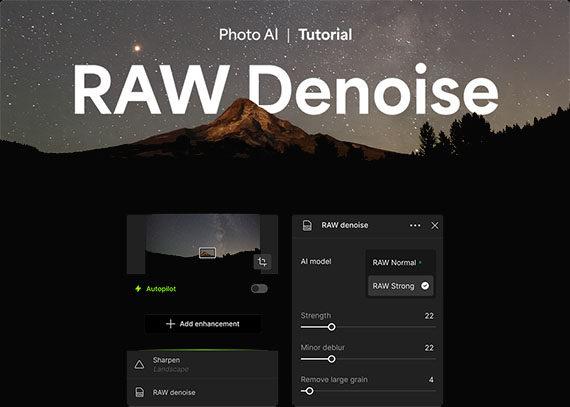
Shooting in RAW gives you the most control in post-processing—but it also often means dealing with aggressive noise, especially in low-light or high-ISO situations. That’s where Photo AI’s RAW Denoise models come in. It is currently $30 off if you try it on any of your photos.

Built specifically for RAW Bayer sensor data, these models detect your file type and automatically apply the best noise reduction approach. Whether your image needs standard cleanup or a more intense fix, Photo AI intelligently selects between the RAW Normal and RAW Strong enhancement models. You’ll also get smart defaults for strength and deblurring, which you can tweak for even better results.

raw denoise

Here’s how to get started:

Step-by-Step: Removing RAW Noise in Photo AI

1. Launch Photo AI

Open the software to begin your RAW editing workflow.

2. Import a RAW File

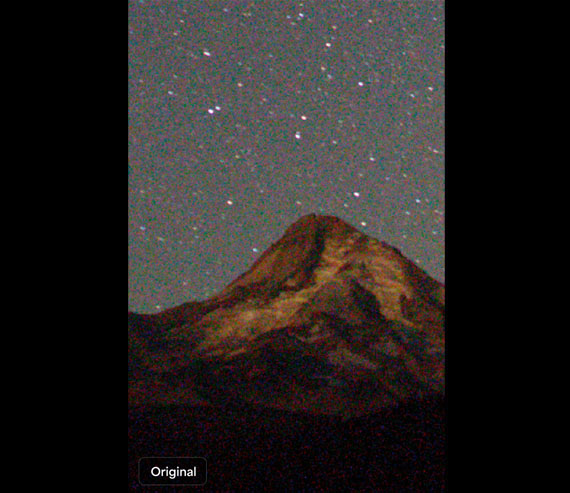
Drop in any high-ISO image with noticeable noise or hot pixels. The system will automatically recognize RAW Bayer sensor data.

before denoise

3. Let RAW Denoise Work Its Magic

Photo AI will automatically apply either the RAW Normal or RAW Strong model depending on the detected noise levels.

4. Stack Enhancements (Optional)

Add tools like Sharpen to bring back detail and clarity as needed.

5. Fine-Tune Your Results

Use the manual sliders for strength, deblur, and other adjustments until your photo looks just right.

after denoise

With Photo AI, you can shoot confidently in RAW—even in challenging lighting—and rely on powerful AI tools to clean up the noise, fast. No need for tedious trial-and-error. Just sharper, clearer images ready for your next edit.

Try it Yourself:

The latest release of Photo AI (version 4) with RAW Denoise introduces several powerful tools and improvements designed to enhance image editing capabilities. They are also offering it at $30 off today to celebrate the release if you want to check it out.

Deal ending soon: Photo AI Version 4 Launch Sale


from PictureCorrect https://ift.tt/X2hMmwv
via IFTTT

maanantai 19. toukokuuta 2025

PictureCorrect.com: Understanding Metering Modes

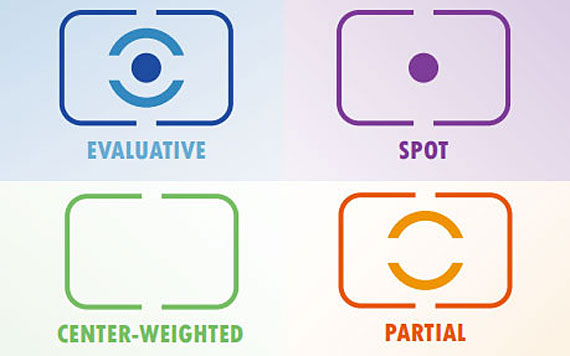
Metering modes are an often-overlooked camera setting that determine how the camera measures the amount of light in a scene and sets the exposure. The three most common metering modes are evaluative, center-weighted, and spot metering. Let’s take a closer look at each one.

Today’s lesson is based on one of the Fundamental Camera Cheat Sheets which are 75% off for a May Markdown today.

metering modes

Evaluative metering, also known as matrix or multi-segment metering, divides the frame into a number of segments and measures the light in each segment to determine the correct exposure. This is the default metering mode on most cameras and is suitable for most situations.

evaluative metering

Evaluative metering

Center-weighted metering places more emphasis on the center of the frame, typically the central 60-80%, and less on the surrounding areas. This ensures that the main subject, located in the central region, is correctly exposed, while still accounting for the surrounding environment.

This is useful for situations where your subject is in the center of the frame, and the background lighting isn’t crucial. It’s commonly used for portraits or subjects that need more focus compared to the rest of the scene.

center-weighted

Photo captured by Warren Wong

Spot metering measures the light only in a small area of the frame, typically around 1-5% of the total image. This allows for precise exposure control when dealing with high-contrast situations, such as backlit subjects or scenes with bright and dark areas. You can point the spot metering area at a specific part of the scene, like a person’s face or a highlight, to ensure that it is correctly exposed.

This mode is useful when you want to take a reading from a specific part of the scene, such as a person’s face in a portrait, or a bird in flight against a bright sky. It is also useful for backlit subjects, where the background is much brighter than the subject. For example, if you are taking a portrait and the sun is behind your subject, you can use spot metering to take a reading from the face and ensure that it is properly exposed.

spot metering

Photo captured by iam_os

Partial metering is similar to spot metering but covers a slightly larger area, around 10-15% of the frame. This mode allows for greater control over exposure when dealing with scenes that have significant variations in brightness, as it helps to focus on the most important part of the image without being influenced by the surrounding areas.

partial metering

Photo captured by Ray Hennessy

For a handy cheat sheet on this subject that you can print out for reference, you may want to check out this launch sale before it is over.

Have you ever wanted to photograph an amazing moment but missed the shot because you didn’t know the right camera settings to use? That’s where the camera cheat sheets come in. They are currently 75% off for a May Markdown today if you want to check them out.

fundamental photography sheets

New: Fundamental Photography Cheat Sheets

Whether you’re a seasoned professional or just starting out, photography cheat sheets can be a valuable resource for improving your skills and taking your photography to the next level. The perfect companion for any photographer. Print one out whenever you need it.

May markdown ending soon: The Camera Cheat Sheets at 75% Off


from PictureCorrect https://ift.tt/RbDTW1B
via IFTTT

sunnuntai 18. toukokuuta 2025

PictureCorrect.com: History of Masking Techniques in Photo Editing

The art of photography has been inseparable from the techniques employed in editing and post-production. Among these, masking stands out as an invaluable tool that has allowed photographers to perfect their images, manipulate backgrounds, and create composite pictures with intricate detail. But masking in photo editing isn’t something that came about overnight; it has a rich history and has evolved significantly over the years with advancements in technology. In this blog post, we’ll explore the origins of masking and how it has evolved over time with the introduction of new tools and software.

Relevant note: only a little while left for the Masking Photo Editing Guide at 68% Off

masking history photo edits

What is Masking?

In photo editing, masking refers to the practice of hiding or revealing specific areas of an image. It allows you to manipulate only a portion of the picture without affecting the rest, offering tremendous control over the final output. The masked area can be edited, transformed, or even replaced altogether, all while keeping the rest of the image intact.

The Early Days: Analog Masking Techniques

Masking has its roots in the era of film photography. Early photographers used a variety of creative techniques to manipulate their photos. This included physically cutting and pasting different pieces of photographs together, painting onto negatives, and even using layers of glass to superimpose images. Though these methods were labor-intensive and required meticulous attention to detail, they were the foundations upon which modern masking techniques were built.

Hand-Made Masks

In the days of the darkroom, photographers would use hand-made masks, often cut from cardboard or paper, to cover parts of an image while exposing a print. These masks helped in dodging and burning, techniques to brighten or darken specific areas of a photograph.

The Digital Revolution

The advent of digital photography and editing software like Adobe Photoshop brought about a sea change in masking techniques. Instead of manually cutting out pieces of film or using physical masks, editors could now use software to achieve the same effect with far greater ease and precision.

Layer Masks

Layer masks in software like Photoshop allowed for non-destructive editing, where changes could be made to one layer without affecting the original image. This gave photographers the freedom to experiment and tweak their masks without worrying about irreversible mistakes.

Clipping Masks

Clipping masks took things a step further by allowing one layer to define the visible boundaries of another. This enabled more complex compositions, like text-filled shapes or images taking on specific forms.

Advanced Features: Smart Masks and AI Tools

As technology has evolved, so have masking capabilities. Smart masks can automatically detect edges and provide a more precise cutout of complicated shapes like hair and fur. AI-powered tools can even recognize objects within an image, making the masking process increasingly automated and accurate.

The Present and Future

Today, masking tools are more advanced than ever, offering features like feathering, variable gradients, and real-time previews. With the constant improvements in computing power and machine learning algorithms, the future of masking in photo editing looks promising.

Masking has come a long way from its humble beginnings in the darkroom. With the continual advancement in technology, this indispensable tool in photo editing is only set to become more sophisticated, providing photographers with even more control over their work. Whether you’re a professional photographer or a hobbyist, understanding the history and evolution of masking can give you a greater appreciation of the craft and inspire you to experiment with new techniques.

So the next time you sit down to edit your photos, remember that you’re participating in a long tradition of photographic artistry, empowered by tools that are the result of decades of innovation and evolution.

For Further Training:

Achieving perfect photography requires more than just in-camera skills in today’s environment. Yes, even the professionals now rely on post-production skills to PERFECT their images. One of the most important photo editing skills to learn is called “Masking” and an in-depth guide is now available to help photographers master it. It is 68% off if you want to check out the table of contents.

understanding masking

Masking: A Critical Skill for Photo Editing

After you read this new masking guide you’ll realize that you are no longer tied to what you find. You can clean up the bugs in your shots. Fix those less than perfect rose petals. Take out that pesky truck that parked right in the middle of your landscape shot.

Deal ending soon: Understanding Masking for Photographers at 68% Off


from PictureCorrect https://ift.tt/CquLwyH
via IFTTT

lauantai 17. toukokuuta 2025

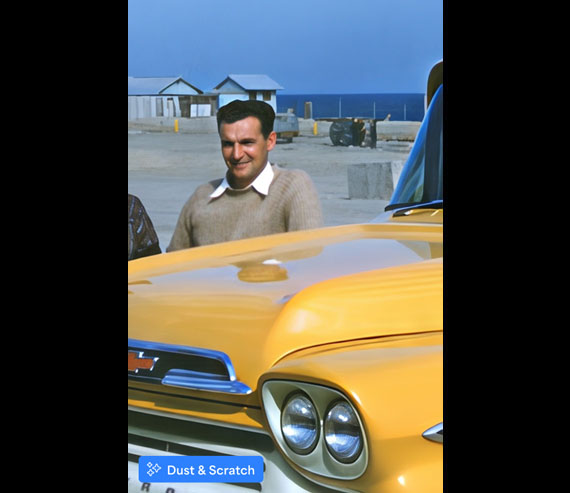
PictureCorrect.com: How to Remove Dust & Scratches: Photo Restoration

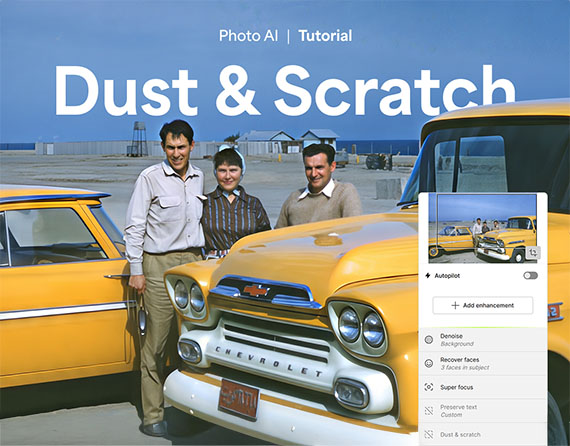
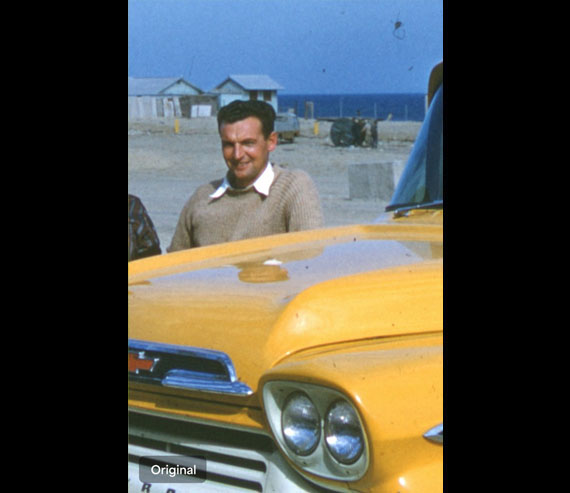
Old family photos, scanned film, or even shots from dusty camera gear often come with visible imperfections—scratches, dust spots, and surface damage that distract from the image itself. With Photo AI 4’s brand-new Dust & Scratch tool, you can now restore these photos quickly and accurately using AI—without losing the original character of the image.

This tool is the first AI model of its kind, built to intelligently repair surface-level damage while preserving texture, tone, and detail. Whether you’re digitizing photo archives or touching up a flawed image from your last shoot, Dust & Scratch makes high-quality restoration simpler than ever.

Let’s walk through how to use it.

fix dust and scratches

🔧 Step-by-Step: Repairing Your Photo

1. Open Photo AI 4

Launch the latest version of Photo AI on your desktop. You can choose to run it locally or in the cloud depending on your system performance or preference.

2. Import the Damaged Photo

Click “Import” and load a photo that shows visible signs of:

  • Dust particles
  • Scratches or scuffs
  • Film grain issues or surface blemishes

These could come from scanned prints, older negatives, or even newer photos affected by environmental conditions.

before repair

3. Apply the Dust & Scratch Tool

Select the Dust & Scratch enhancement from the sidebar. This tool scans the image to detect and correct widespread imperfections across the entire frame.

✅ Pro Tip: This works best as an initial global fix before zooming into finer areas.

4. Use the Healing Brush for Finishing Touches

After the main AI model does its work, switch to the healing brush for any detailed edits. This tool is intuitive and fast—just paint over stubborn marks or areas where you want more precise control.

Use a smaller brush size for tight corners or near facial features to avoid overcorrection.

5. Stack Additional Enhancements (Optional)

To take your restoration even further:

  • Add Super Focus v2 to improve clarity and edge detail
  • Run Recover Faces to enhance facial features and bring portraits back to life

These enhancements work beautifully in tandem with Dust & Scratch, especially on older or low-resolution images.

after repair

Dust & Scratch in Photo AI 4 represents a leap forward in image restoration. What used to take hours of manual retouching can now be done in minutes—while still preserving the original soul of your photograph.

Whether you’re restoring a shoebox full of family memories or cleaning up a few flawed digital shots, this new feature is a powerful addition to your toolkit.

Try it Yourself:

The latest release of Photo AI (version 4) with the brand new Dust & Scratch tool introduces several powerful tools and improvements designed to enhance image editing capabilities. They are also offering it at $30 off today to celebrate the release if you want to check it out.

Deal ending soon: Photo AI Version 4 Launch Sale


from PictureCorrect https://ift.tt/4UiGdDQ
via IFTTT

torstai 15. toukokuuta 2025

PictureCorrect.com: Milky Way Photography: A Modern Day Approach

Historically, one of the greatest challenges in Milky Way photography was in how to showcase the landscape, but also have the Milky Way properly exposed in the same image. But, the game has very recently changed my friends, and hallelujah! For those of you who do not have experience shooting the Milky Way, when you shoot the photo, the Milky Way will look properly exposed, but the landscape itself will look very dark or even completely black. With this new technique that we are going to discuss, this creates a quick solution, while providing fantastic results.

Related reminder: only 1 day left for the Milky Way Mastery Course Sale
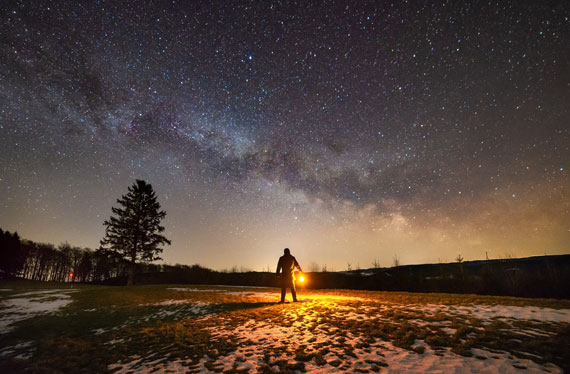
milky way image

Captured by Seth Hamel; ISO 10,000, 15 seconds, f1.8, 14mm

This modern approach is due to the advancements in camera technology, combined with the powerful new AI tools that have been implemented into Lightroom and Photoshop recently. In this article we are going to discuss equipment, camera settings, considerations for specific scenes, and lastly, an intro into editing your RAW files. This is not a detailed outline of how to shoot Milky Way photos. I do have some settings in here, but this article is written for those who have a basic understanding of how to shoot night photos (i.e. how to set focus, the need for a tripod, etc).

First, we need to discuss the other techniques that are currently used to showcase the landscape and the Milky Way into a photo. The first technique would be light painting. In this approach, while exposing your photo on a long exposure, you shine a light onto your subject, or bounce that light off of something to light your subject. This can be a great technique for certain situations, mostly for individual landscape features that protrude into the night sky. However, if you are shooting a massive scene like the Bryce National Park, Zion National Park or Yosemite Valley, you would not be able to evenly light the scene due to its expansiveness. If you tried, the light would be so bright it would be quite intrusive to other visitors, it would be harsh, uneven and it wouldn’t have the aesthetic needed to do the area justice.

The second technique is doing a blue hour blend. This is where you take 2 separate images at different times of the day then blend them together, but you must keep your tripod and camera unmoved between the 2 photos. Your first image would be taken around 40 minutes after sunset during blue hour. You would be using settings like f14 and ISO 100 to create the most crisp image possible, while obtaining full depth of field. Your second image would be taken once the night sky becomes dark and the Milky Way is in the position that you like. Click. Ok, now you have your two photos. One is properly exposed for the landscape, and one is properly exposed for the night sky. From there you would need to take both photos into Photoshop and use layers to combine them. This is a laborious process, and requires you to have a pretty strong skill set in Photoshop. When I’m running workshops, the majority of guests do not have that experience level and that is likely the case for many of you reading this. Well, couldn’t you just open those in Lightroom and merge them into an HDR? Unfortunately no. The landscape, the skyline and the Milky way have to blend together seamlessly, and HDR doesn’t blend, it merges images as a full scene, not blending two portions of a photo together. Two different things.

Blue hour blends certainly create the sharpest, cleanest and most detailed photos, so I’m not saying it’s a bad approach. But the reality is that this is not the most practical or realistic approach for the vast majority of hobbyist landscape photographers. To briefly list those reasons: You need a strong skill set in Adobe Photoshop, editing is time consuming and the biggest reason for me is that it only allows for one landscape image to be created from the night. I’m a very mobile shooter. I love the adventure of running around, looking at different scenes, composing in many different ways and getting playful with photography under the stars, so the blue hour approach for me is not so appetizing.

Now… onto this new mysterious approach. The basic idea is that you are going to shoot your night landscapes including the Milky Way VERY bright! Far brighter than what you would think you want. In fact, I promise you, that when you go out and shoot this way your first time, you will look at your playback and you will think “The Milky Way is all washed out!” or… “It looks like daytime!”. No need to panic my enthusiastic photography comrades! The reason we are doing this is that we need to expose enough information in the shadows of the photo so you can showcase the wonderful landscape that you’re standing in.

Equipment:

This technique is going to benefit more modern cameras as they have better ISO technology and have the ability to push the ISO further without getting the dreaded “pink haze” (I’ll explain later).

Examples of modern setups are:

  • Nikon – Z series mirrorless cameras, D850
  • Canon: Mirrorless camera models, 5D Mark IV.
  • Sony: a7r IV and above

Lenses are the next thing to discuss. You’ve assuredly read that an f2.8 or wider lens is best. Correct. With that being said, with this approach of trying to shoot the scene very bright, f2.8 will work, but it’s far better to use a wide angle lens that will open up wider than that (i.e. f1.4, f1.8 or f2.0).
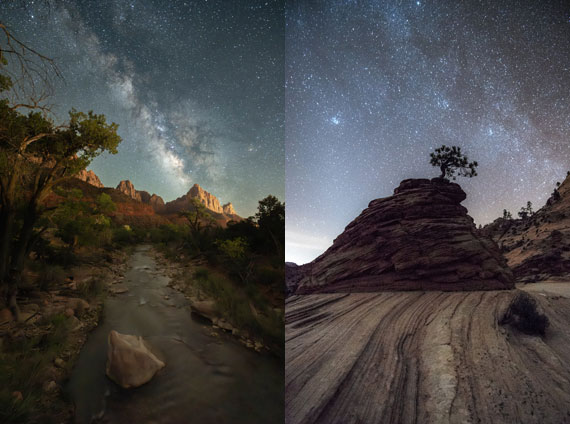
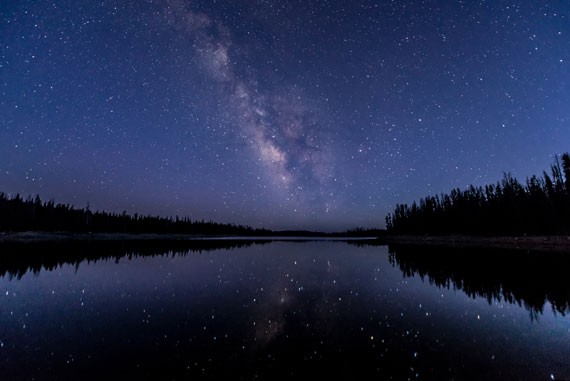
milky way photos

Captured by Seth Hamel; ISO 10000, f1.8, 20 seconds, 14mm And ISO 12800, f1.8, 20 seconds, 14mm

Camera Settings:

Hold onto your hats, and no heart attacks please, because we are about to go into some settings that are probably going to feel uncomfortable.

  • Shutter speed determined by using the rule of 500 (do a google search if you’re unfamiliar)
  • Aperture wide open
  • ISO anywhere between ISO 6400 all the way up to 12,800. Why the range? Different scenes have different lighting conditions, even at night time. Here’s an example. Being a photographer in Zion National Park, if I were to go to the east side of the park, that area has a landscape that has a lot of rolling white rock domes which reflects tons of light from the star filled sky. In fact, you can see the landscape just fine with your eyes even on a moonless night on that side of the park because of that white reflective rock. For bright night landscape scenes such as these, you can shoot using a really wide aperture using ISO 6400 and the landscape would show up nicely. However, if I were to drive into the Scenic Canyon area of Zion, that is a deep canyon which has very dark rock which does not reflect light. In this situation, I would shoot at ISO 12,800 in order to pull in enough light from the shadows. If I were to shoot at ISO 6400 the shadows would not have enough information to work with in post production, hence not showing the landscape in the photo. Even if you could pull those up in post production, the scene would look quite soft, lack detail, and would actually have more graininess than if shot at 12,800. Pulling up dark areas at high ISO’s introduces more grain, so it’s best to shoot it bright.

I mentioned the term “pink haze” earlier in this article. All of our cameras have limitations in their ISO performances. At a certain point, if you keep pushing your ISO higher and higher, eventually your images will start to not only have noise from the high ISO’s, but there will actually be a visible pink or purple haze that is likely at the bottom of your image. At that point, the ISO has been pushed too far, so you should come down a little at a time until that is not visible. I would encourage you to experiment with your camera. Try the extreme high side of your ISO range and then come down more and more until you no longer see the pink haze. Then you’ll know the absolute upper limit of your camera’s ISO ability. That pink haze can be very difficult to impossible to remove in post production.

One more thing to mention, since the night sky will look so bright in the field while shooting, be sure to look at your histogram to ensure that you are not overexposing anything in the sky.

Post Production:

This is where everything comes together. When you pull up your RAW file in Lightroom, Bridge or Photoshop, the first thing that you will notice is that the sky is far too bright, and the Milky Way looks dull and without contrast. Ok, we’re gonna fix that, and we’re going to make this basic and easy.

Step #1 – Use the “Select Sky” tool and edit your sky. You will likely want to pull down the exposure, add a bit of contrast, clarity and dehaze. (If you are unfamiliar with working with “select sky” I would recommend watching some Youtube videos)

Step #2 – Use the “Select Sky” tool again, but this time hit the “invert” button so you are working on the landscape only. At this point, you will likely want to pull the exposure up or down, use the” Whites” slider to pull up some brightness and add contrast, add clarity in order to get the landscape the way you like it.

The goal in these first two steps is to get both portions of the image to look harmonious in both it’s brightness and contrast throughout the photo as a whole. Bringing the landscape brightness up, and the sky down too much will result in an unrealistic photo, so be careful with that. I find my favorite images showcase the Milky Way, and the landscape being a bit darker, subtly showcasing its features. .

Step #3 – Now that you have balanced the brightness and contrast of both parts of the scene, this is a great time to pull up your “compare” or “Y/Y” feature. Pulling up your original photo next to the edited version will give you immediate feedback on what looks wonky in your edit.

Step #4 – At this point I work on the photo as a whole using the basic tab, and color corrections to my liking.

Step #5 – The game changing moment (in addition to the select sky tool :). We will now go down to the “detail” tab, and hit the” DeNoise AI” button. At this point, a dialog box will pop up and you’ll have the option to have more or less noise removed. 50 and below is best from my experience. Once you’ve done that, you can hit enter and Voilà! You will now have an edited second copy of your photo, but with the noise reduction applied. The amount of noise removal while keeping good detail is literally hard to believe. What a technological progression for photography!
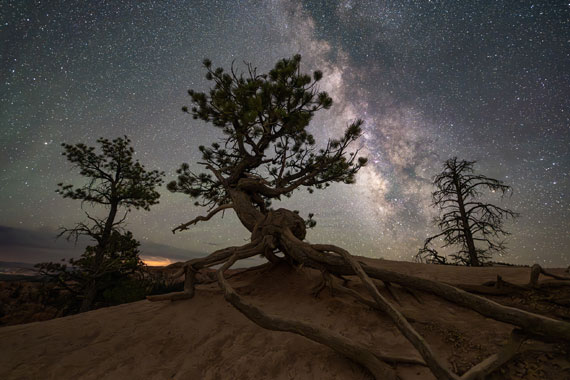
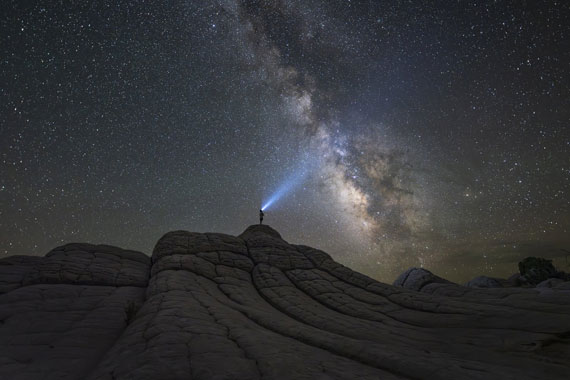
tree with milky way

Captured by Seth Hamel; ISO 12800, f1.8, 15 seconds, 14mm

So, maybe you have some older Milky Way photos on a hard drive. I’d recommend pulling some of those into Lightroom or Bridge and try the post production techniques. Even if you didn’t shoot as bright as what I went over in this article, give those photos a new edit with these techniques and I’m confident you’ll be pleased with the results.

I’m not here to say that this is the best approach to Milky Way photography. In fact, I don’t subscribe to the term “best” in the world of photography. Our approaches, our styles, how we want to interact with photography and the landscape, who we are as people…. We are as diverse as the eternities and there can not be a one size fits all in artistic pursuits. I’m hoping that by sharing this technique with you, that you will experiment with it and that will assist you in creating images and memories of your time in the wilderness that you will love and be proud of! Happy shooting friends!

About the Author:
Seth Hamel is a professional landscape photographer based on the borders of Zion National Park. As owner of Enlighten Photography Excursions, he has been guiding and mentoring hobbyist photographers for the past decade in Southern Utah and Iceland. Seth offers single night as well as multi-night Milky Way photography workshops throughout the year in the Zion and Bryce National Parks for every level of photographer. Learn more about available guided Zion, Bryce and Iceland photography opportunities at zion-photography.com.

For Further Training:

If there was a simple way to take stunning pictures of the the Milky Way would you be interested? You do not need top-of-the-line gear for Milky Way Mastery. In fact, during this course they show you why old fashioned accessories are often better for astro photography. It is currently 67% off for 1 more day if you want to check it out.

milky way mastery

Milky Way Mastery Night Photography Course

The “secret” to exceptional astro photography isn’t your gear… it’s how you use it. Milky Way Mastery shows you how to use average equipment to take above average pictures.

Only 1 day left: Milky Way Mastery at 67% Off


from PictureCorrect https://ift.tt/1kv6lsL
via IFTTT

keskiviikko 14. toukokuuta 2025

PictureCorrect.com: Understanding an Essential Photo Editing Skill: Masking

Achieving perfect photography requires more than just in-camera skills in today’s environment. Yes, even the professionals now rely on post-production skills to PERFECT their images. One of the most important photo editing skills to learn is called “Masking” and this in-depth guide is here to help photographers master it. “This is THE no.1 editing skill I wish I’d learnt when I started…” It is currently 68% off today if you want to check it out. Deal found here: Understanding Masking for Photographers at 68% Off

understanding masking

Masking: A Critical Skill for Photo Editing (Click to Learn More)

How many times have you returned home to review your pictures only to spot something you missed when you took the shot? Something that totally ruins the photograph…

After you read this new masking guide you’ll realize that you are no longer tied to what you find. You can clean up the bugs in your shots. Fix those less than perfect rose petals. Take out that pesky truck that parked right in the middle of your landscape shot.

It includes 171 pages of training, illustrations, and self-check quizzes. Covering the masking techniques and secrets in ALL of the popular editing software packages. (Inc. Lightroom, Photoshop, Elements, Camera Raw & Mobile Photography editing apps. It covers it all!)

masking photo editing tutorials

Tutorials from the Understanding Masking In-depth Guide

Some of the Many Topics Covered:

  • Never again waste a photo because of some unwanted object in the background…
  • Discover how to mask and improve your photographs not only with your computer but also on your mobile phone!
  • The Honest, no “bull crap” truth about leaving visual artifacts behind- (You don’t want to be the photographer that does this.)
  • How to use both “Reveal All” and “Hide All” masks to their advantage
  • Learn how to “Mastermind” masking and layers—
  • The dirty little “Secrets of Clipping Masks”
  • Clear straightforward advice on how to keep multiple masks in a neat and tidy order.
  • Why your masking technique will live or die based on your knowledge of feathering…
  • Why many photographers will miss opportunities because they don’t know how to properly use masking (and why you won’t because you’ll have that knowledge)!
  • Surprising solutions to altering masks in Lightroom
  • Discover the Pure magic and Joy of Creating the “Perfect” photograph—
  • And so much more!

How to Improve Photos with Masking (Click to Learn More)

About the Author:
Kent DuFault has helped thousands of photographers like you, with his various best-selling books. He has an incredible teaching method. It’s simple to follow, easy to understand and never boring. Imagine sitting down with an old friend for a fireside chat. That’s what learning from Kent is like. The art of masking can seem intimidating. With this guide Kent provides you with easy step-by-step instructions.

How to Get a Discounted Copy Today (With Bonuses):

Currently 68% off which ends soon (normally $60, currently just $19). It also comes with an impressive 365-day happiness guarantee so there’s no risk in trying it. Plus, you’ll get a bonus masking cheat sheet and bonus tutorial video with our deal – all of which ends soon.

Deal found here: Understanding Masking for Photo Editing at 68% Off


from PictureCorrect https://ift.tt/UMX7Bu1
via IFTTT
tiistai 13. toukokuuta 2025

PictureCorrect.com: How to Fix Blurry Photos with Super Focus

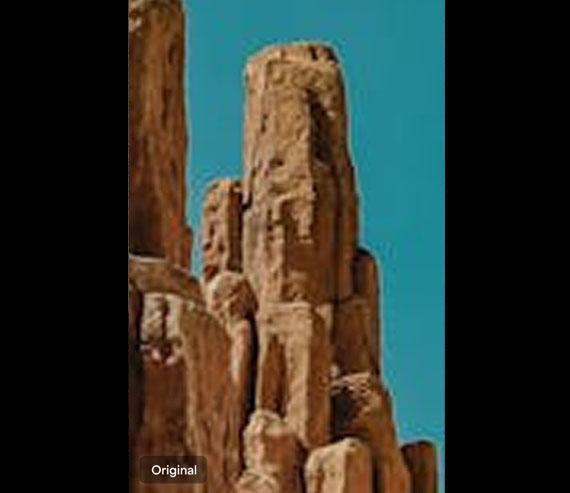
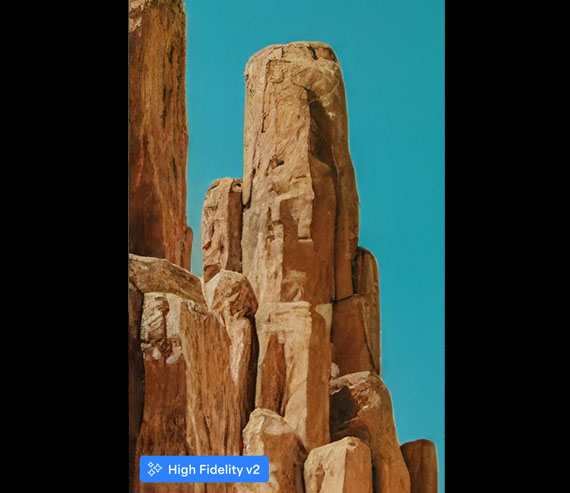
Even the best photographers occasionally miss focus. Whether it’s a quick candid, a long exposure with motion blur, or a slightly soft portrait, blurry photos can be frustrating—especially when they capture important or once-in-a-lifetime moments. That’s where Super Focus v2 in Topaz Photo AI comes in. It is currently $30 off if you try it on any of your photos.

This advanced AI model doesn’t just sharpen a soft image—it recovers real details, deblurs complex scenes, and intelligently refines focus across your image. In this tutorial, we’ll walk you through how to use Super Focus and its companion tools to turn throwaway shots into keepers.

photo ai super focus

🔍 What Is Super Focus v2?

Super Focus v2 is a major leap forward in AI-powered photo correction. Compared to the previous version, it’s up to 500% faster and significantly more accurate at restoring sharpness. It works by analyzing the image structure, estimating how the blur occurred, and then reversing that damage while pulling out natural-looking details.

For especially blurry photos, there’s an additional tool called Focus Boost, which first downscales the image to reduce severe blur and then upscales it again—preserving the look of detail while minimizing artifacts.

🛠 When to Use It

Super Focus v2 is best suited for:

  • Portraits with soft eyes or camera shake
  • Landscapes taken without a tripod
  • Low-light shots where focus missed slightly
  • Action shots with motion blur
  • Any image that looks “almost good” but not quite sharp

🖼 Step-by-Step: Refocus Your Image

1. Launch Topaz Photo AI

Open Topaz Photo AI on your computer. Make sure you’re using the latest version to access Super Focus v2 and Focus Boost.

2. Import Your Blurry or Soft Image

Drag and drop your image into the app. You’ll see a preview immediately. Select the area you want to improve, especially if the blur affects only certain parts.

blurry photo

3. Enable Super Focus v2

In the enhancement panel, turn on Super Focus. The tool will begin analyzing your image and apply focus recovery. You’ll notice an instant improvement in sharpness, especially around edges and fine textures.

4. Use Focus Boost for Strong Blur

If your image is extremely blurry or large, toggle Focus Boost. This is a two-step enhancement process that can resolve otherwise unrecoverable details. Just note: on smaller inputs, Focus Boost can sometimes be too strong—so use it selectively.

5. Adjust Enhancement Strength

If the results feel overly sharpened or slightly artificial, don’t worry. You can dial down the Strength slider to find a natural balance. The flexibility here is ideal for portraits where you want clarity without harshness.

6. Selective Editing with the Brush Tool

Use the edit selection brush to apply Super Focus only where needed. This is helpful if you want to avoid sharpening a bokeh background or want to remove minor artifacts from smooth areas like skies or skin.

7. Finish with Face Recovery or Text Preservation (Optional)

If your image contains faces, run Face Recovery after using Super Focus to refine facial features naturally. For documents or images with writing, use Preserve Text to ensure labels and fonts stay legible and clean.

super focus

💡 Pro Tips

  • Super Focus works best when blur is from missed focus or slight motion—not from extreme motion streaks or heavy noise.
  • You can combine Super Focus with Remove Noise or Enhance Resolution in Photo AI for even better results.
  • Always zoom to 100% or more to inspect how the enhancements affect skin, hair, and fine textures.

Try it Yourself:

The latest release of Photo AI (version 4) with Super Focus introduces several powerful tools and improvements designed to enhance image editing capabilities. They are also offering it at $30 off today to celebrate the release if you want to check it out.

Deal ending soon: Photo AI Version 4 Launch Sale


from PictureCorrect https://ift.tt/YyARsnP
via IFTTT

maanantai 12. toukokuuta 2025

PictureCorrect.com: Milky Way Camera Settings and Gear

When you photograph the sky during night time, you may be surprised at what you can capture with an extended shutter speed. With the correct gear and long exposure photography technique, you can collect enough light on your sensor to clearly make out the milky way in the night sky.

It’s astonishing to see how much information a camera can record. It allows us to have a glimpse of the deep sky without the use of highly sophisticated equipment. There are however certain considerations you need to make to ensure that you capture a decent looking milky way photograph. And that includes using the right gear and the right camera settings to get the job done.

Relevant reminder: sale going on now for the Milky Way Mastery Course

milky way camera settings

Photo captured by Evgeni Tcherkasski; ISO 3200, f/2.8, 14mm, 25 seconds.

Gear for Milky Way Photography

Camera: If you have an option, then go with a full frame camera as they typically have better high ISO performance. However any camera where you can set the shutter speed manually and focus manually may be able to do the trick. Many entry level cameras are able to do to this, and even some smartphones offer manual exposure settings now too.

Lens: Photographing the milky way means capturing the hundreds and thousands of stars of our galaxy in a single frame. It simply means that you’ll be working with a wide angle lens for the purpose. If you’re using a full frame camera, use something wider than 35mm, and in case of an APS-C camera, use something wider than 24mm.

Tripod: Milky way photography requires that you expose the sensor for a prolonged period of time. A good sturdy tripod is thus mandatory.

Remote shutter release or self-timer feature: Any type of shake becomes prominent in long exposure photography; even the ones caused when pressing the shutter release button. Using a remote shutter release or self-timer, you can trigger the shutter release without having to even touch the camera. This reduces camera shake and lands you sharper images.

Light pollution filters: While it is best to photograph the milky way in perfect dark conditions, finding such locations can be very difficult. If the location that you’re shooting from has some amount of light pollution from the city lights, you can use light pollution filters that help to ignore the city light and create images with better contrast.

App to locate the milky way: Photopills, Sun Surveyor, and Skyguide are popular options.

Besides these camera gears, don’t forget to pack a flashlight with you. As you’ll be working in pretty dark conditions, you will need them for moving around, and even for changing the camera settings.

milky way photograph

Photo captured by Jackson Hendry; ISO 1600, f/2.8, 14mm, 20 seconds.

Camera Settings for Milky Way Photography

Aperture: You’d want as much light entering the camera as possible owing to the low light condition. Set your lens to the widest aperture setting possible. Depending on the lens you’re using it may be f/1.8, f/2.8, f/4, f/5.6 etc or whatever your widest aperture setting is.

Focusing: Set your lens to manual focus mode and focus on a bright star manually. The live view feature on many cameras can help magnify into the scene or you can set your lens to approximately the infinity marker. Once done, leave it there. You can even tape the focus ring to avoid accidentally changing it later.

Shutter speed: Longer shutter speeds will result in greater amount of light passing to the sensor. That’s great for low light photos, right? Right, but there’s a catch. Since the earth is moving relative to the stars, very long shutter speed will result in star trails. And you don’t want that when shooting the milky way.

A general rule of thumb to determine the longest shutter speed you can use without getting star trails is to divide the number 500 with the full frame equivalent of the focal length that you’re using. So, if you’re using a 24mm lens, the longest you can go without getting star trails is:

500 / 24 = 20.8s

In this case, you’ll thus need to have the shutter speed 20 seconds or shorter to avoid star trails.

ISO: Tweak your ISO based on the intensity of the milky way you’re able to capture using the widest aperture and the longest shutter speed. While lower ISO is better for less noise, for milky way photography, you may need to bump it to around 1600-6400 depending on the conditions. Start with a lower ISO setting and if your result is too dark keep increasing it.

For Further Training:

If there was a simple way to take stunning pictures of the the Milky Way would you be interested? You do not need top-of-the-line gear for Milky Way Mastery. In fact, during this course they show you why old fashioned accessories are often better for astro photography. It is currently 67% off today if you want to check it out.

milky way mastery

Milky Way Mastery Night Photography Course

The “secret” to exceptional astro photography isn’t your gear… it’s how you use it. Milky Way Mastery shows you how to use average equipment to take above average pictures.

Deal ending soon: Milky Way Mastery at 67% Off


from PictureCorrect https://ift.tt/JPrFxYf
via IFTTT